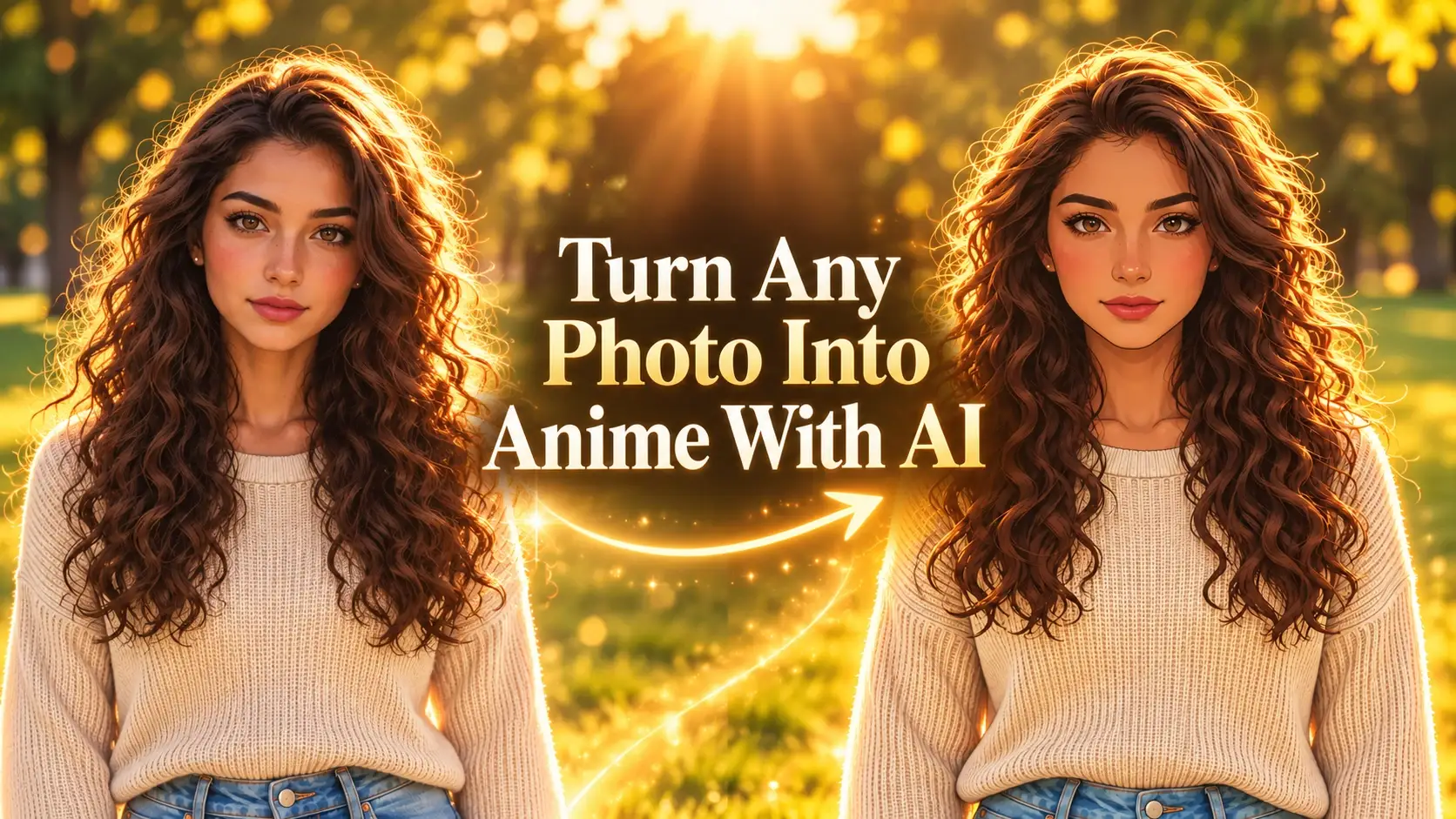
An image may have the right subject but not enough room on either side. A portrait can feel too centered for a website banner. A product photo may need copy space. A travel image may need a wider composition without cutting away the scenery.
An AI image extender adds new content beyond the original left or right edge. This process is often called outpainting: the original image remains in place while the AI generates a continuation of the scene.
Decide Where the New Space Should Go
Before expanding the image, choose the purpose of the new space.
| Goal | Where to Extend |
|---|---|
| Add website copy | Extend toward the empty text side |
| Recenter a subject | Extend the side opposite the subject |
| Create a banner | Extend both sides, with more space on one side |
| Show more scenery | Extend toward the visible landscape |
| Fit a horizontal layout | Extend left and right while preserving the original height |
| Add a background object | Extend toward the object’s natural direction |
Start with one side when possible. Extending both sides at once gives the AI more content to invent.
How to Expand an Image Horizontally
1. Keep the Original Image Intact
Upload the image to the AI Image Editor.
State that the existing image should stay unchanged. The AI should generate only the new area beyond the original border.
“Extend this image to the right. Keep all original content unchanged, including the person, background, lighting, perspective, and composition. Continue the existing scene naturally into the new space.”
2. Describe What Should Continue
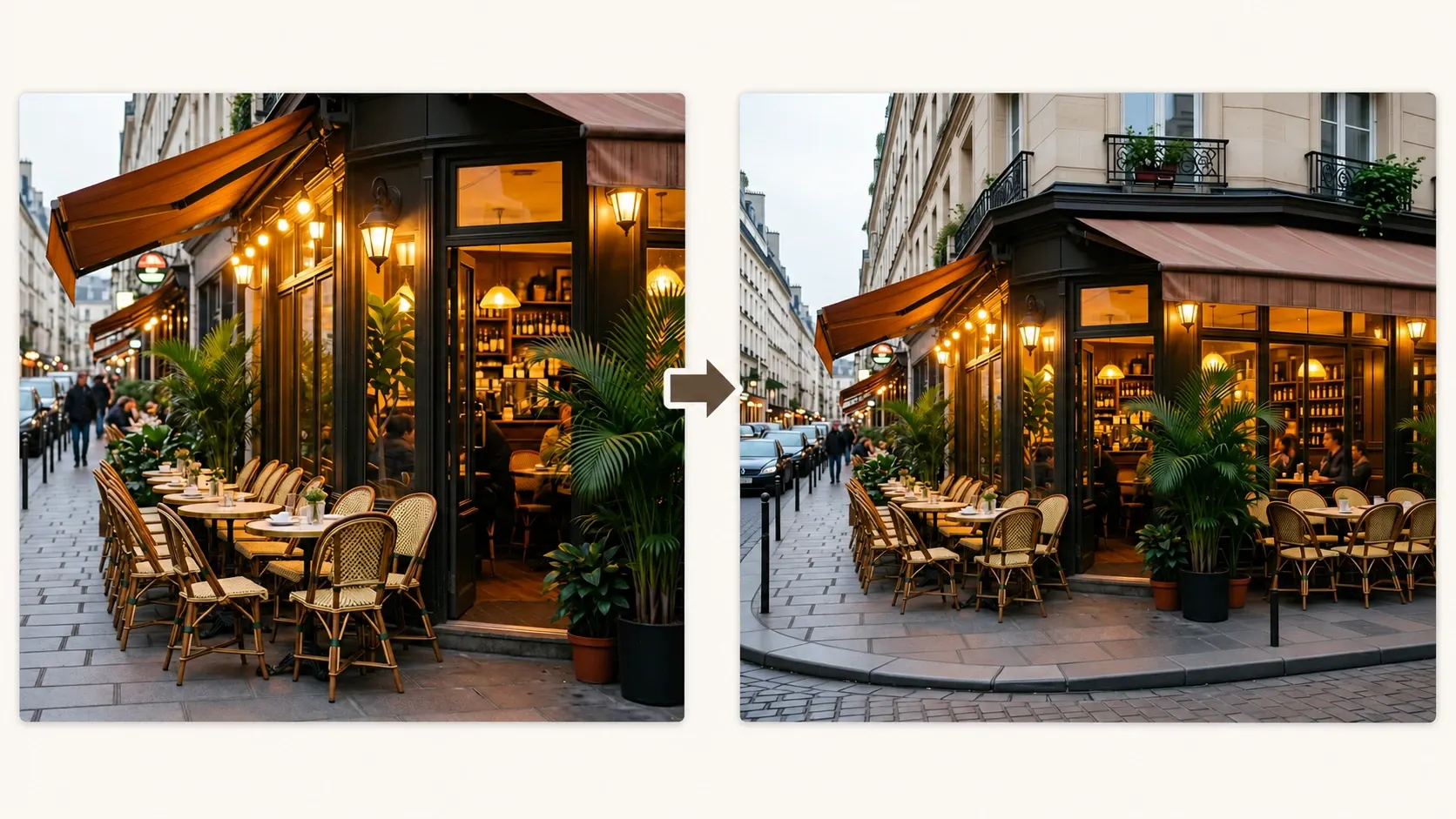
Name the visible elements near the edge: wall, desk, sky, road, forest, beach, or floor.
For a more controlled extension:
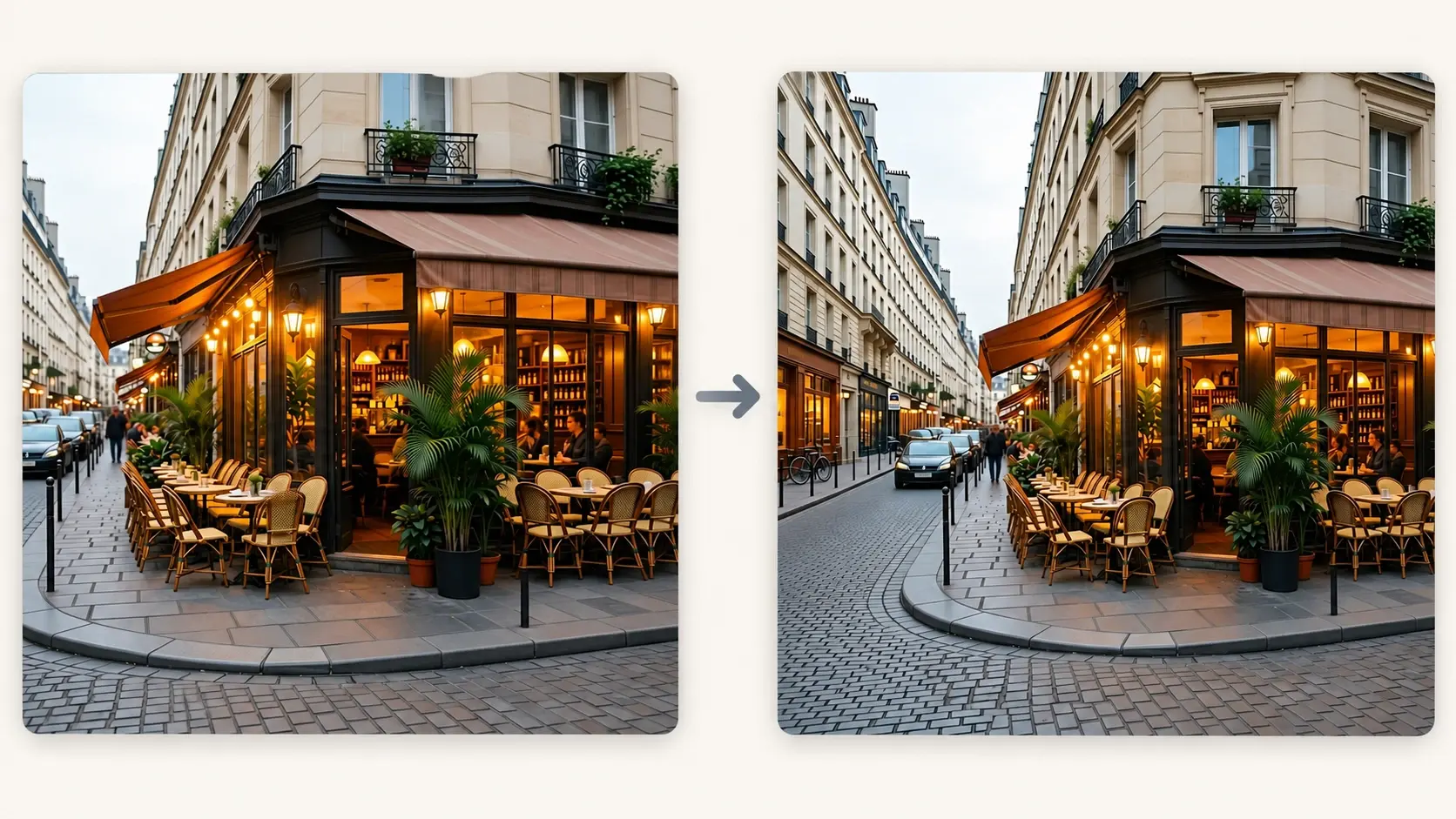
“Extend this image horizontally to the left. Continue the exterior café scene naturally into the adjacent street, matching the existing architecture, pavement, perspective, lighting, and depth of field. Add realistic street details on the left side, such as the sidewalk, curb, road surface, nearby storefront edges, street signs, parked bicycles or cars, and subtle urban elements that fit the original environment. Keep the extension visually consistent with the café exterior and existing street scene. Preserve the original image unchanged. Do not add any text.”
3. Check the New Boundary
Review the join between the original and generated areas.
Check:
- Object size and direction
- Straight lines in walls, roads, and tables
- Horizon position
- Shadow direction
- Repeated objects or patterns
- Product labels and edges
- Subject scale and position
- Unwanted text or logos
If the extension is close, correct one problem at a time.
10 Horizontal Image Extension Prompts
| Use Case | Prompt |
|---|---|
| Add right-side copy space | Extend this image horizontally to the right. Keep the original subject and image content unchanged. Continue the existing background naturally and leave the new right-side area clean and uncluttered for a headline. Do not generate text. |
| Add left-side copy space | Extend this image horizontally to the left. Preserve the original composition, subject, lighting, and perspective. Continue the background naturally and leave a simple clear area on the left for later copy. Do not add words, letters, or logos. |
| Product banner | Extend this product photo horizontally to the left. Keep the product, packaging, label, logo, proportions, shadow, and camera angle unchanged. Continue the surface and background naturally, leaving clean space for website copy. |
| Portrait banner | Extend this portrait horizontally to the side opposite the person. Keep the person’s face, hairstyle, expression, clothing, body proportions, pose, and lighting unchanged. Continue the original environment with matching depth of field. |
| Landscape panorama | Extend this landscape image horizontally to both sides. Preserve the original mountains, trees, horizon, water, and lighting. Continue the scenery naturally without adding new focal objects or changing the existing composition. |
| Beach photo | Extend this beach image to the right. Preserve the person, shoreline, ocean, sand, waves, horizon, and lighting. Continue the beach and sky naturally with no duplicated people or objects. |
| City street | Extend this city street photo horizontally to the left. Keep the buildings, cars, people, road layout, camera angle, and lighting unchanged. Continue the street and architecture with realistic perspective and no readable generated text. |
| Interior photo | Extend this room image horizontally to the right. Preserve all existing furniture, windows, walls, floor, lighting, and camera perspective. Continue the visible wall and floor naturally, without adding extra furniture. |
| Product on a studio background | Extend this studio product photo to both sides. Keep the product exactly unchanged, including shape, materials, color, label, logo, and contact shadow. Continue the plain background and surface with soft consistent studio lighting. |
| Fix a tight crop | Extend this image horizontally to create more breathing room around the subject. Keep the original content at the same scale and position. Generate only matching background beyond the existing edges, with no crop, stretch, or new focal objects. |
Match the Extension to the Original Edge
The AI uses the information near the edge to continue the scene. A clean edge is easier to extend than one containing part of a face, hand, product label, or complex object.
| Edge Detail | Best Prompt Direction |
|---|---|
| Plain wall | Continue the same wall color, texture, and light falloff |
| Table or floor | Continue grain, material, shadow direction, and perspective |
| Sky | Continue cloud type, color, horizon haze, and daylight |
| Forest or grass | Continue natural variation without repeated trees or patterns |
| Building | Continue architectural lines, windows, and vanishing point |
| Water | Continue wave direction, reflections, and horizon level |
For a wide 16:9 layout, see How to Extend an Image to 16:9. For vertical feed and Story formats, use How to Extend Photos for Instagram.
Common Problems and Fixes
| Problem | Prompt Adjustment |
|---|---|
| The original image changes | State that all original content must remain unchanged and generate only outside the current boundary. |
| The wall or road bends | Ask to preserve the visible direction, lines, and vanishing point. |
| The same object repeats | Request natural variation and no duplicated objects. |
| The subject shifts position | Preserve the subject’s original size, placement, pose, and crop. |
| The new area is too busy | Ask for a clean continuation with no new focal objects. |
| Text appears in the extension | Add “do not generate text, letters, logos, or symbols.” |
| A product becomes distorted | Preserve its shape, label, logo, materials, proportions, and shadow exactly. |
Use the Extension for Layout, Not Decoration
Horizontal extension is most useful when it solves a composition problem:
- A hero image needs copy space
- A product page needs a wider crop
- A landscape feels too narrow
- A subject needs more breathing room
- A campaign needs a banner ratio
- Several images need a consistent width
Keep the instruction focused on the new space. If you also want to change the scene, background, or subject, make that edit separately after the extension is approved.
Start with one side, preserve the original image, and inspect the boundary before using the expanded version.