A photo can look perfect in your camera roll and still feel awkward when you prepare it for Instagram.A wide travel photo may lose the scenery around your subject. A close portrait may cut off part of the hair or outfit. In a carousel, one image can also affect how the remaining photos are displayed.
You could add a plain border, but that often makes the image look smaller. Cropping fills the frame, but it removes part of the original composition. AI image extension offers another option. Instead of cutting the photo, it generates new visual content around its edges. You keep the original image and add enough space to fit the layout you need.
How to Extend a Photo for Instagram Without Cropping
Before editing, decide where the photo will appear. A portrait feed post usually needs more vertical space, while a Story or Reel cover uses a taller frame. If you are preparing a carousel, choose one consistent shape for all the slides before editing the first image.
The goal is not simply to make the image larger. You need to extend the correct sides while protecting the original subject.
Step 1: Upload the Photo and Describe the New Frame
Open XPT and upload the original photo.
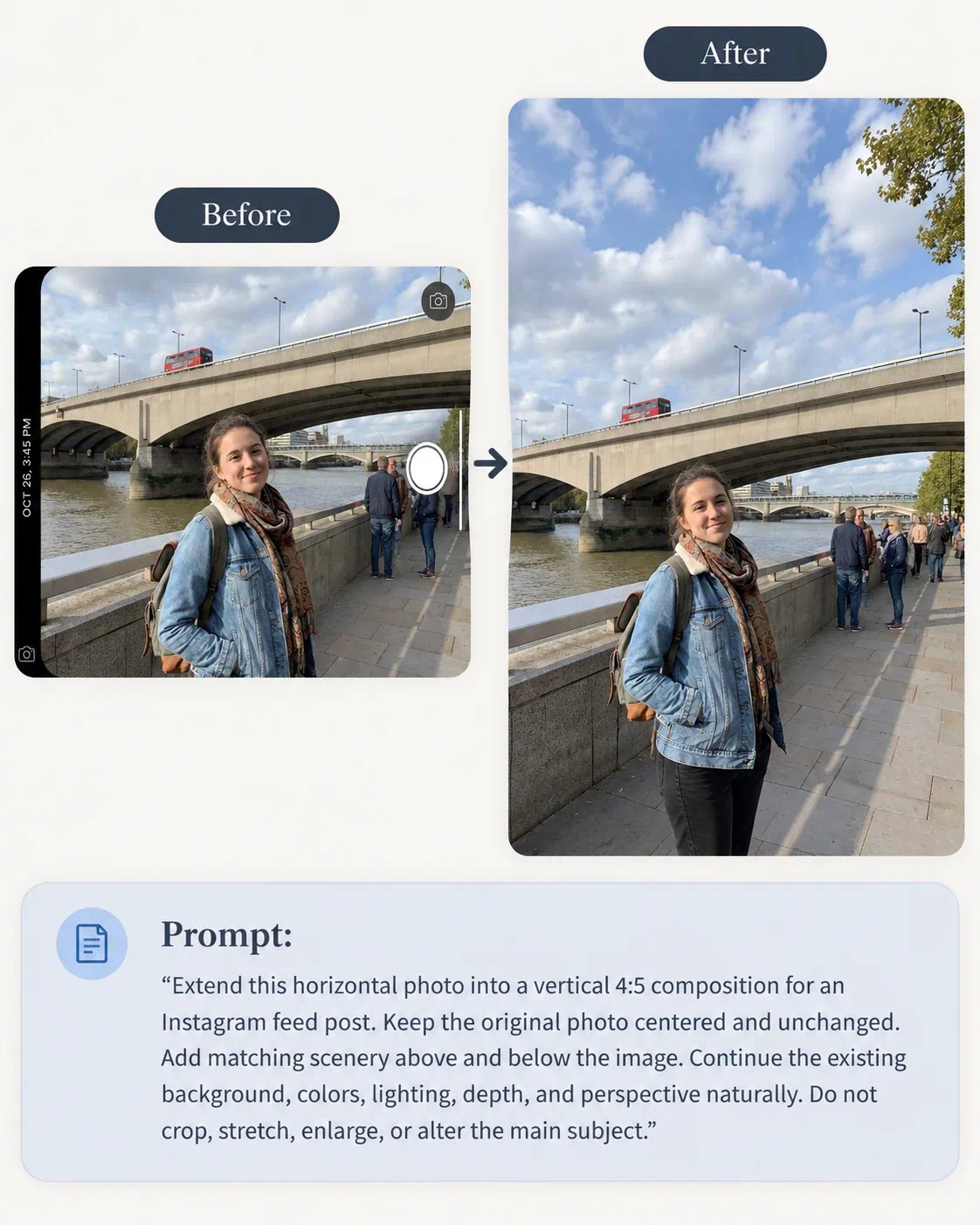
Tell XPT which aspect ratio you want and where it should add new space. Also specify what must remain unchanged.
For a horizontal photo that needs a vertical feed layout, try: “Extend this horizontal photo into a vertical 4:5 composition for an Instagram feed post. Keep the original photo centered and unchanged. Add matching scenery above and below the image. Continue the existing background, colors, lighting, depth, and perspective naturally. Do not crop, stretch, enlarge, or alter the main subject.”
For a general explanation of horizontal expansion, see how to extend any image to 16:9 with AI.
Step 2: Check the Extended Result
Compare the generated image with the original before posting it.
First, confirm that the original area has not changed. The purpose of outpainting is to add content around the image, not redesign the person, product, or central scene.
Check these details:
- Is the subject still the same size and position?
- Has any part of the original photo been cropped or stretched?
- Do walls, roads, horizons, and furniture continue in the correct direction?
- Does the new area match the original light and color?
- Are there repeated objects or unnatural patterns?
- Have hands, hair, clothing, products, signs, or faces changed?
- Is there enough clear space around important content?
Pay close attention to the boundary between the original image and the generated area. A strong extension should not leave a visible seam. If the AI adds distracting objects, unnecessary people, or invented text, refine the result before using it.
Step 3: Continue Adjusting the Composition
If the new frame is close but still looks unnatural, adjust one issue at a time.
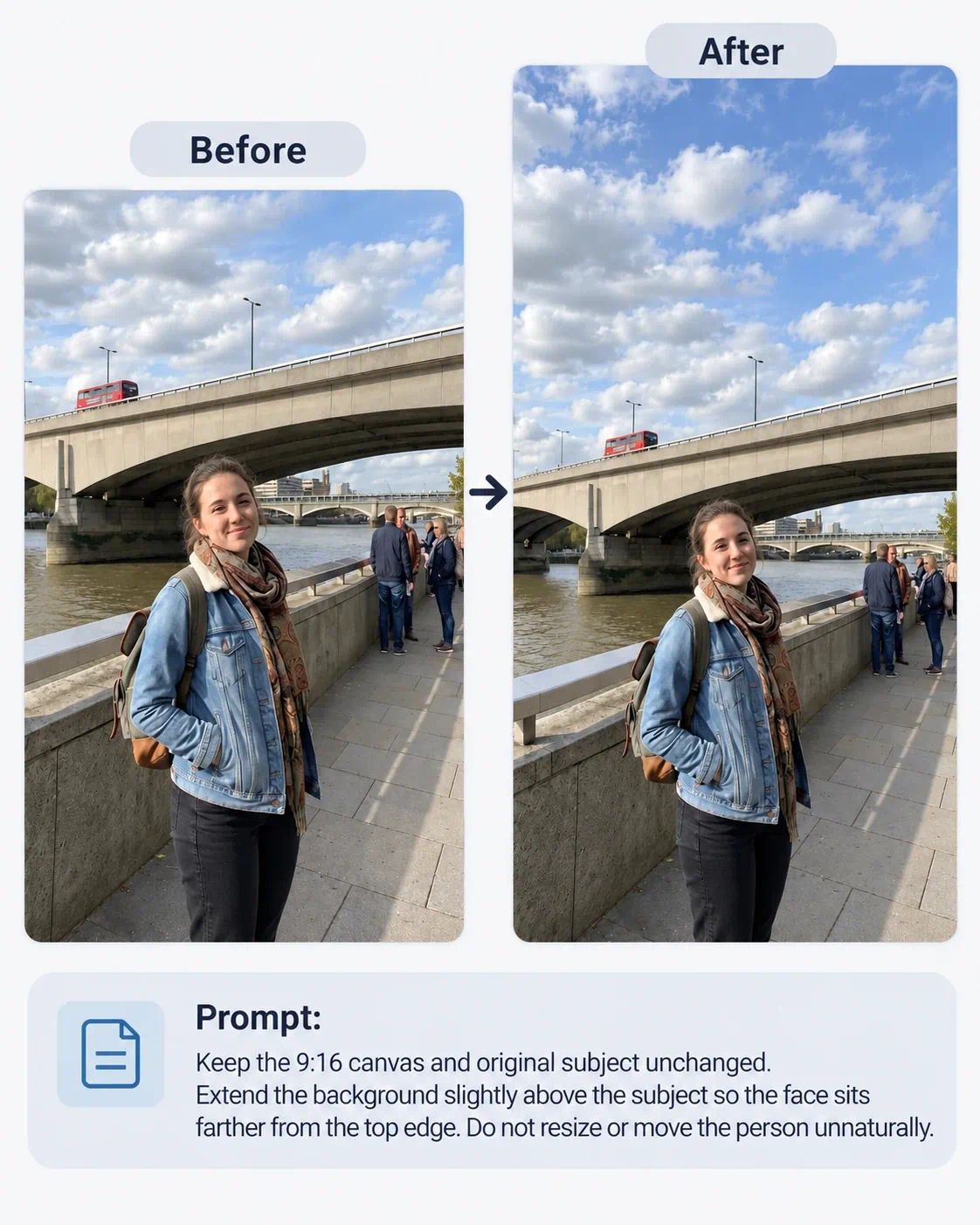
If the subject is too close to an interface area in a Story or Reel cover, ask for more negative space:
“Keep the 9:16 canvas and original subject unchanged. Extend the background slightly above the subject so the face sits farther from the top edge. Do not resize or move the person unnaturally.”
Which Instagram Layout Should You Choose?
The right layout depends on where the image will appear and how you want people to view it.
| Placement | Common Working Ratio | Best Use |
|---|---|---|
| Feed portrait | 4:5 | Portraits, fashion, products, illustrations, and posts that benefit from more vertical screen space |
| Feed square | 1:1 | Consistent grids, simple graphics, centered subjects, and mixed-content carousels |
| Feed landscape | 1.91:1 | Wide scenery, architecture, groups, and horizontal compositions |
| Story or Reel | 9:16 | Full-screen vertical content, Story graphics, and Reel covers |
Instagram’s display behavior and publishing interface can change. Check the current crop preview inside Instagram before posting, especially for carousel covers, profile-grid previews, or paid placements.
When Should You Extend Instead of Crop?
Preserve a Full-Body Portrait
Cropping a full-body photo into a vertical layout may cut off shoes, clothing, or the environment around the person. Extending the background lets you keep the entire pose while creating a taller composition.
Keep the Scenery in a Travel Photo
A landscape photo often depends on the space around the subject. Instead of removing the mountains, architecture, beach, or street scene, extend the sky, ground, or surrounding environment to fit the Instagram frame.
Protect Product Details
Cropping a product image can remove packaging, accessories, handles, or shadows that help the viewer understand the item. Extending the background creates breathing room while keeping the whole product visible.
Fit Horizontal Images Into a Carousel
A carousel looks more consistent when its slides use the same layout. You can extend horizontal photos into a shared vertical or square frame rather than heavily cropping each image. Create every slide separately, then review the set together.
Turn a Photo Into a Story Background
A feed photo may not have enough vertical space for a Story. Extending it to 9:16 creates room around the original photo and can provide space for captions, stickers, links, or other Story elements.
Create Space for Text
If you plan to add a title or message, ask the AI to leave a simple area on the appropriate side. Generate the clean background first. Add exact text afterward in a design editor so spelling, font, and brand styling remain under your control.
Common Problems and How to Fix Them
| Problem | What to Ask For |
|---|---|
| The AI stretches the original photo | Keep the original image at its current scale and proportions. Add content only outside the existing boundaries. |
| The face or product changes | Preserve all original pixels inside the source image. Extend only the canvas and surrounding background. |
| The extension has a visible seam | Blend the generated area with the original color, texture, lighting, focus, and perspective. |
| New objects distract from the subject | Replace the generated objects with a simple continuation of the existing background. |
| The horizon bends | Continue the horizon in a straight line at the same height and perspective as the original. |
| A wall or floor changes direction | Match the visible architectural lines and vanishing point from the source photo. |
| The background looks repetitive | Create natural variation without adding new focal objects or changing the original scene. |
| Story controls may cover the subject | Add more background space above or below while keeping the subject unchanged. |
If the extension keeps altering the original photo, return to the original file and use a more restrictive prompt.
10 AI Prompts for Extending Instagram Photos
| Use Case | AI Prompt |
|---|---|
| Horizontal Photo to 4:5 | Extend this horizontal photo into a vertical 4:5 composition. Keep the original image centered and unchanged. Generate matching background above and below it. Preserve the subject, lighting, perspective, color, and depth of field. |
| Square Photo to 4:5 | Extend this square photo vertically to a 4:5 aspect ratio. Add natural background space above and below. Do not crop, stretch, resize, or alter any original content. |
| Feed Photo to 9:16 Story | Extend this feed photo into a 9:16 vertical Story layout. Preserve the complete original photo and generate matching scenery above and below it. Keep the central subject away from the top and bottom edges. |
| Extend a Full-Body Portrait | Extend this portrait to 4:5 without cropping the person. Continue the background and floor naturally. Preserve the face, hair, body, outfit, hands, shoes, pose, proportions, and lighting. |
| Extend a Travel Landscape | Extend this travel image vertically to 4:5. Continue the sky above and the foreground below while preserving the landmark, people, horizon, perspective, and original framing. |
| Extend a Beach Photo | Convert this beach photo into a vertical 4:5 composition. Add matching sky above and sand below. Preserve the person, ocean, shoreline, waves, shadows, and lighting. |
| Extend a Product Photo | Extend this product photo to a 4:5 frame. Keep the product, packaging, label, shape, color, proportions, and existing shadow unchanged. Continue only the background and surface. |
| Prepare a Carousel Slide | Extend this photo to a 4:5 Instagram carousel layout. Keep the original subject and composition unchanged. Add a simple matching background around the image so it aligns naturally with the other slides. |
| Create Space for a Caption | Extend this image upward to a 4:5 frame and leave a clean, visually simple area above the subject for a later headline. Do not generate any text. Preserve the original image and lighting. |
| Simplify the Extended Area | Keep the current dimensions and all original content unchanged. Replace distracting objects in the generated area with a natural continuation of the existing background. |
Post the Full Photo Without Sacrificing the Composition
Cropping is useful when the extra parts of an image do not matter. When the complete subject or scenery is essential, extending the canvas gives you more control.
Choose the Instagram layout first. Upload the photo to XPT, request the target aspect ratio, and clearly identify everything that must stay unchanged.
Then inspect the boundary, subject, lighting, and background before posting.
For more general image-editing instructions, read how to edit images with AI prompts.