To turn an image into a video, choose a still that works as a starting composition, describe one clear motion, and generate a clip in an image-to-video workflow. The image supplies the visible scene; your prompt explains what should happen over time.
That division keeps the task manageable. You do not need to redescribe every object in the picture. This is useful guidance for writing a motion brief, though controls and behavior differ across products.
The practical challenge is preserving what makes the still useful while adding movement that belongs to it. Start small, inspect the whole clip, and expand the idea only after the basic shot works.
Build the Image-to-Video Brief in XPT
1. Prepare a readable starting image
Choose an image with a clear subject and enough space for the intended movement. A person cropped tightly at the hands may be a poor starting point for a gesture. A product with tiny lettering may need a nearly static treatment if the label must stay readable.
Use XPT’s AI Image Editor for any necessary preparation before the motion stage. Keep those edits focused: remove a distraction, improve a crop, or simplify a background. Use the image editing prompt templates to define the change and protect the details that should remain. Compare the prepared still with the original before using it as the basis for a clip.
In the XPT session, use an image-to-video option if one is available to your account. If it is not, use the chat to develop the shot brief and apply it in an image-to-video generator. Availability, clip length, resolution, and export choices depend on the workflow you actually use; check them before planning the final deliverable.
2. Pick the main movement
Decide whether the subject moves, the camera moves, or a small part of the environment moves. For a first attempt, give one of those a clear lead role. A subtle curtain movement with a static camera is easier to evaluate than a walking subject, rotating camera, and changing weather in the same shot.
The scene already exists in the image. The prompt adds a small amount of temporal behavior and identifies the stable anchors.
3. Describe the camera separately from the subject
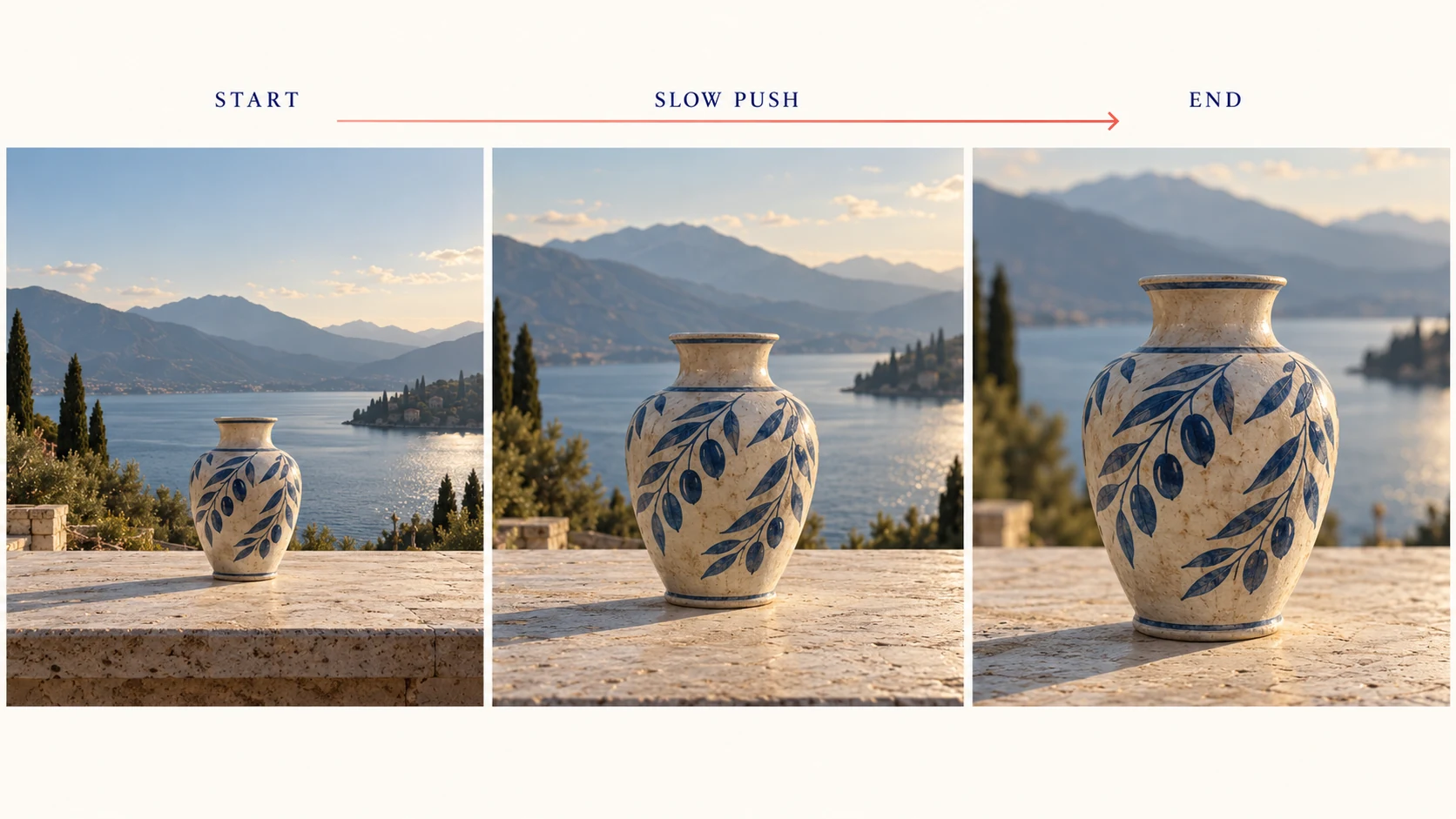
A moving camera can create a sense of depth, but it may also require the generator to invent areas that the still never showed. A slow push toward a vase is a different request from a full orbit around it.
Start with a modest movement. Review the result before adding a turn, a hand interaction, or a lighting transition. If the product’s exact geometry matters, compare multiple moments in the clip against the source.
Watch the clip from start to finish, then inspect moments where motion changes direction or the camera gets closest. A strong first frame can conceal a label that drifts later, a face that changes expression unexpectedly, or a hand that develops an extra finger.
Check whether the movement matches the brief and whether the stable objects remain stable. If the clip is intended to loop, compare its ending with its beginning; an attractive ending is not automatically a smooth loop.
For the next attempt, correct the largest mismatch first. Simplify the movement before adding more descriptive words. Keep the original still as the starting point when a generated clip has already drifted too far from it.
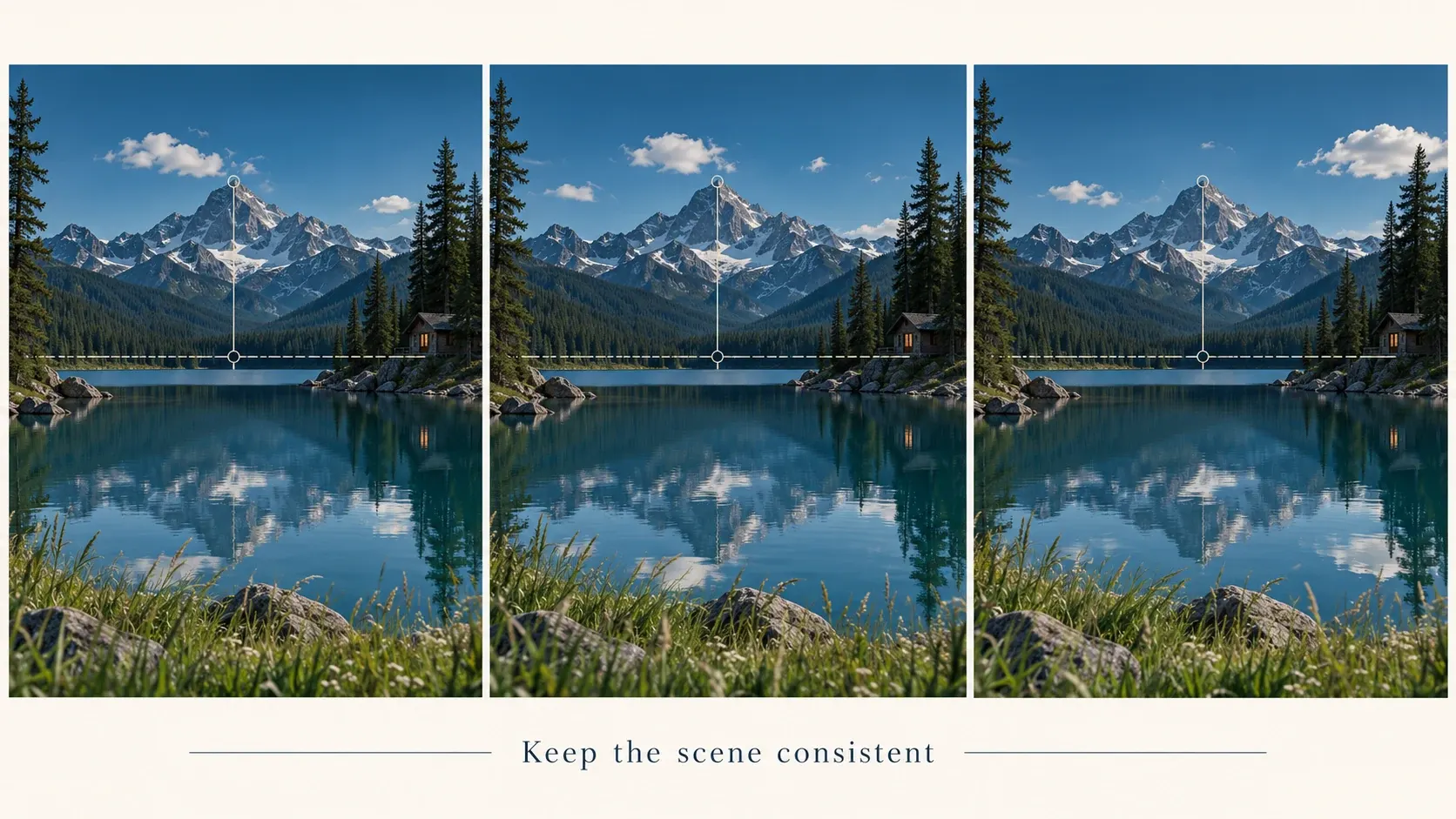
A landscape often has natural small movements: leaves, grass, water, or clouds. Keep solid structures and the horizon stable. If the scene has no obvious depth separation, a dramatic camera move may reveal its limitations.
A portrait can work with a restrained head movement or a small change in posture, but identity deserves close review. Avoid asking for complex hand gestures when the source gives little information about the hands. Use your own or authorized images and make the creative nature of the animation clear when sharing it.
A product shot benefits from controlled camera movement and stable lighting. Rotating a package can expose unseen panels and distort text. For exact commercial details, a conventional video shoot or a controlled 3D workflow may be a better fit.
An illustration can support a more graphic treatment: drifting particles, moving fabric, or a layered camera move. Decide which elements should behave like flat artwork and which should appear to have depth.
Fix the Still Before Making a More Complex Shot
If a distracting object is already present, motion may make it more noticeable. The AI Image Replacer can help you formulate a local replacement before you animate. Check that repair in the still rather than trying to hide it with a fast camera move.
Similarly, a poor crop does not become a strong composition just because it moves. Give the subject room in the direction of its action. If the output has a different aspect ratio, make that composition decision before requesting motion.
Do not add another generation stage solely to compensate for an unclear shot idea. A simple, readable movement usually communicates more than several competing actions.
Keep a Small Shot Record
Save the source image, the motion prompt, and the selected clip together. Note what worked: the restrained camera move, the stable expression, or the timing of the environmental motion. Keep rejected versions separate so they do not become accidental references.
Before publishing, check the actual saved clip for aspect ratio, visible artifacts, and playback quality in its intended placement. Add titles or captions separately when the words need to remain exact.
Begin with one useful still and one movement that suits it. A successful image-to-video result feels like a deliberate shot, with enough consistency to keep the viewer’s attention on the subject.