The best AI image editing prompt describes a visible change and gives the editor a clear boundary. It tells you what success should look like before you generate anything. Long lists of quality words rarely solve an unclear brief.
Start with four decisions: what to change, where to change it, what the result should look like, and what must remain. Adobe’s guidance for editing prompts similarly emphasizes identifying the object, area, or attribute and adding relevant visual details. The examples below turn that principle into practical requests you can adapt.
These are writing patterns, not results from a controlled product test. Different editors interpret instructions differently, and a precise request still needs a careful review.
How to Generate an Edited Image in XPT
1. Open the image editor and add your source
Open XPT’s AI Image Editor and upload the image you want to change. Use the clearest version available and keep an untouched copy. For these editing prompts, the source photo supplies the starting scene; you are generating an edited version rather than describing a completely new picture.
2. Choose a template and fill in the details
Use one of the templates below. Replace every bracketed field with details visible in your image. Name the target by location, appearance, or both. Start with one main change so you can evaluate it clearly.
3. Add a reference only when it helps
If another image shows the outfit, object, or style you want, add it as a reference. Identify the source and reference separately in the prompt, and explain which attributes to borrow. Avoid asking the editor to copy an entire reference when you need only its jacket or color palette.
4. Submit the prompt and compare the generated image
Submit your request to generate the edited version. Compare it with the original: check the requested change first, then faces, hands, labels, composition, and other protected details. XPT’s published reference-image tutorial describes this source–reference–prompt workflow; available controls may differ by session.
5. Refine one visible issue
Give one focused follow-up instead of reopening the whole scene. If a revision changes too much, return to the original or last good version. Save the version that suits your intended use, checking the actual file rather than relying only on its preview.
Copy-and-Adapt Prompt Templates
Replace the bracketed fields before submitting. Keep only the instructions relevant to your image; a short, consistent brief is easier to judge than a list of conflicting requirements.
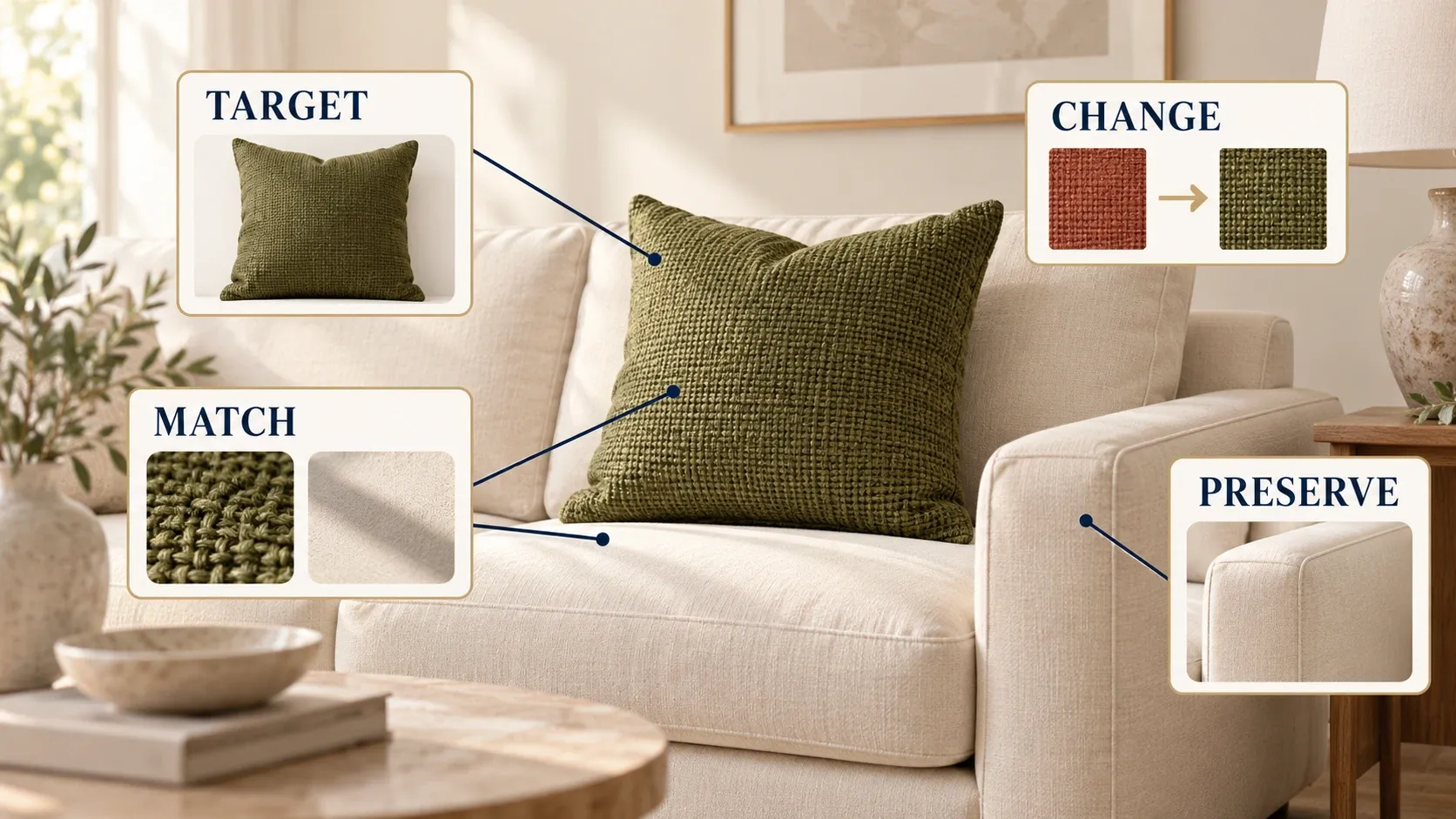
Local edit template
“Edit [source image]. Change only [object or area and location] to [desired appearance]. Match [lighting, perspective, texture, or scale]. Preserve [specific subjects and details]. Keep the rest of the composition unchanged.”
For a cushion recolor, fill in the location, fabric color, weave, seams, and surrounding sofa. The completed example appears below.
Reference-guided replacement template
“Image 1 is the source. Image 2 is the reference for [specific object or attribute] only. Replace [target in Image 1] using [detail from Image 2]. Match the source [lighting, angle, and scale]. Preserve [protected details]. Ignore the reference’s [unwanted person, setting, or styling].”
Use this when words alone leave the desired object ambiguous. Label each reference rather than assuming upload order explains its purpose.
Focused revision template
“Keep the approved [change]. Correct only [visible defect and location] to match [source detail or desired appearance]. Restore [detail that drifted] from the original. Make no other changes.”
The following eight completed examples show how these structures translate into practical editing requests.
Eight Prompt Patterns for Common Edits
1. Lift a dark subject without flattening the scene
“Lift the shadow detail on the person’s face slightly while keeping the evening atmosphere. Preserve the facial features, expression, skin texture, clothing, and background. Keep the original direction of light.”
This is a tonal correction. Check whether the face remains believable relative to the surroundings. If the subject looks like it was photographed under studio lights, the correction has gone further than the brief intended.
2. Remove a small distraction
“Remove the red bag on the floor beside the left chair. Continue the existing wooden floorboards through that area, matching their direction and soft shadow. Keep the chair, table, and rest of the room unchanged.”
The replacement surface is explicit. Inspect board spacing and the chair’s edge rather than judging only whether the bag disappeared. The AI Image Replacer is a relevant next step when the repair needs a deliberately defined local replacement.
3. Change the background while retaining the subject
“Place the ceramic vase against a quiet warm-gray studio background. Keep its shape, glaze color, handle, and existing decoration unchanged. Use soft light from the left and a restrained contact shadow beneath the base.”
The setting and lighting belong in the same instruction. Review the handle opening, base, and reflection; those can reveal a mismatch even when the new background looks attractive.
4. Make room for a headline
“Extend the right side of this photograph with a continuation of the pale wall. Keep the person and original scene details in place. Leave the added area simple enough for a dark headline that will be typeset separately.”
Ask for space, not generated placeholder lettering. This keeps the image task separate from exact typography. Inspect the join between the original and added wall for changes in texture or perspective.
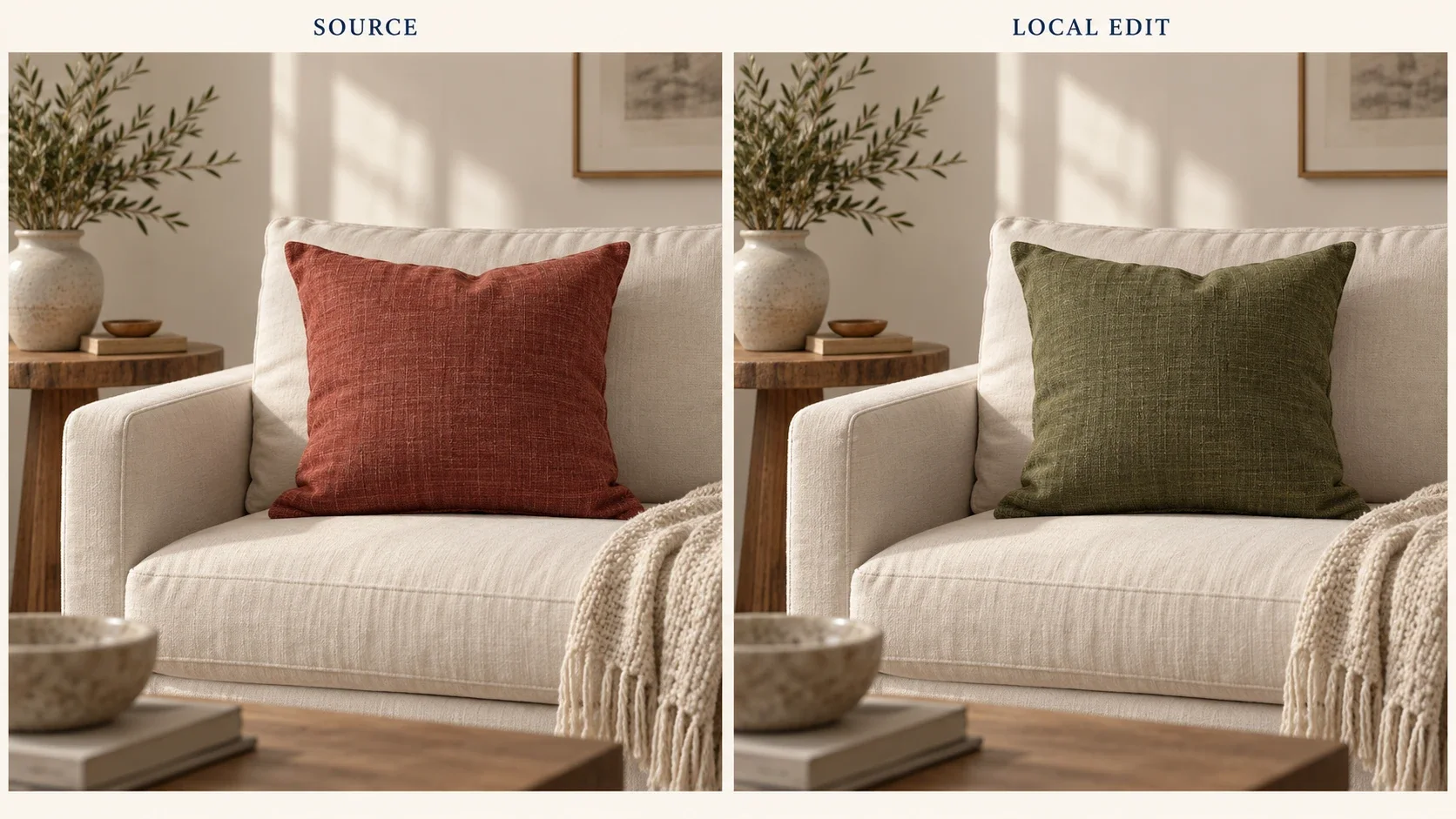
5. Change one material or color
“Change only the cushion fabric from bright red to muted olive green. Retain the weave, seams, folds, and shadows. Keep the sofa frame, surrounding cushions, room lighting, and composition unchanged.”
A color request can accidentally become a redesign. Check whether the cushion still has the same dimensions, stitching, and material rather than accepting any green replacement.
6. Repair a small damaged area
“Repair the thin scratch across the lower wall in this scanned photograph. Match the surrounding grain and faded tone. Preserve the people, clothing, handwriting, and overall aged appearance.”
Keep restoration modest where the source contains personal or historical detail. A plausible new texture is different from accurate recovery of a missing face, date, or object.
7. Explore an illustration treatment
“Reinterpret this landscape as a softly painted editorial illustration with muted earth colors and simple brush texture. Keep the mountain silhouette, path placement, and main composition recognizable. Simplify small background details.”
This is a whole-image interpretation, so more of the source may change. Decide which structural anchors matter before comparing versions. Do not judge it by the same preservation standard as a local object removal.
8. Prepare a text-free base for new copy
“Remove only the headline at the top of this graphic and rebuild the plain blue background beneath it. Preserve the illustration, border, logo, and lower text. Leave the repaired area empty for new editable typography.”
When exact wording matters, adding the approved text in a separate design layer gives you direct control over characters and spacing. Read all retained text after the repair, including small captions. If you need to add new wording, follow the guide to replacing text in an image for spelling and layout checks.
Refine the Defect You Can See
A useful follow-up names the mismatch. If the vase handle changed, ask for that handle to match the original. If the background is too busy, reduce its detail. If the person’s face changed during a lighting edit, return to the source and narrow the tonal request.
Avoid stacking a new crop, stronger color, smoother skin, and different shadows into the same correction. You will have difficulty knowing which instruction caused the next problem.
Keep a short record of the prompt and the specific result you preferred. This helps you compare decisions without claiming that the same words will produce identical output every time.
Check More Than the Main Change
Review protected areas as carefully as the edited area. For portraits, inspect eyes, teeth, hands, and distinctive features. For products, inspect shape, labels, dimensions, and material cues. For architecture, inspect lines, repeated patterns, and reflections.
Then view the image where it will be used. A thumbnail needs a readable subject; a large product image needs more detailed inspection. Save the original so that an unsuccessful branch does not become the source for every later attempt.
A good prompt is specific enough to edit and simple enough to evaluate. Choose the closest pattern, replace its scene details with your own, and make the next request about one visible decision.