Replacing text in an image involves two jobs: removing the old lettering and making the new lettering fit. A result can look convincing while containing one wrong character, a changed price, or a line break that weakens the design. Treat the words as information that needs checking, not just another visual texture.
If you have the editable source design, change the text layer there. For a flattened image, AI editing can help prepare or visualize the replacement. Exact business copy is often easier to finish in a design editor with editable type.
Adobe’s text-editing documentation notes that its image-text workflow has restrictions involving character sets, stylized lettering, and rotated text. Those are useful questions to ask of any workflow before relying on it for a finished graphic.
Replace the Text With an XPT Editing Brief
1. Write down the old and new wording separately
Open the AI Image Editor and provide your image using the options available in the current session. If image editing is unavailable, prepare the brief in XPT and carry it into an editor that supports your source.
Specify the exact old text, its location, and the exact replacement. Include capitalization, punctuation, accents, currency signs, and line breaks when they matter. A request to update the date is less reliable than a request naming both dates.
2. Describe the treatment without overloading it
Use observable typography terms: bold sans serif, narrow uppercase, cream lettering, centered alignment, or two lines of similar width. If you know the original font, keep that information for a conventional editor; do not assume an AI rendition will reproduce it exactly.
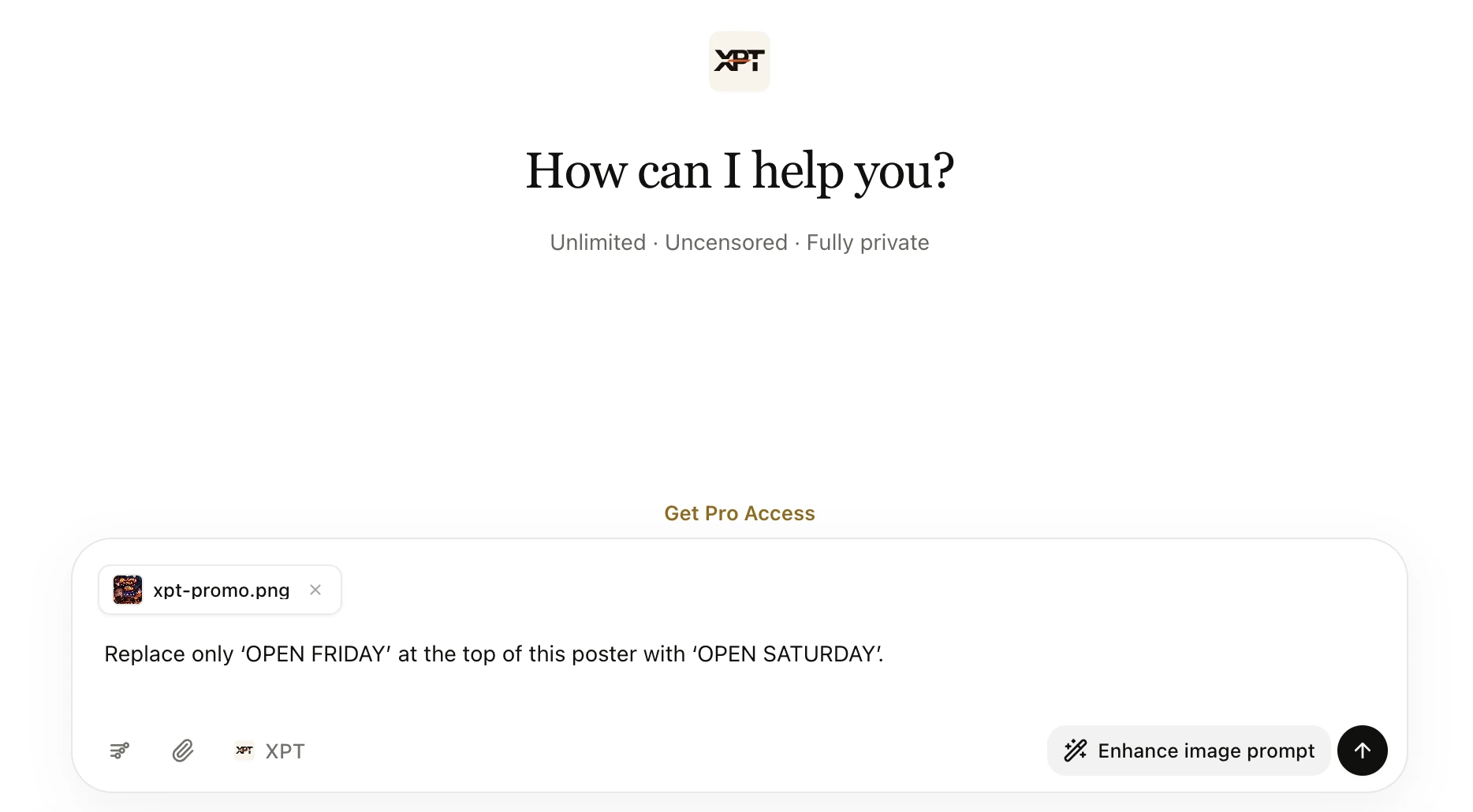
“Replace only ‘OPEN FRIDAY’ at the top of this poster with ‘OPEN SATURDAY’. Use uppercase cream lettering with a similar bold weight and centered alignment. Keep the background illustration, border, lower text, and overall layout unchanged. Preserve enough spacing around the longer word.”

3. Separate cleanup from exact typesetting when needed
If the new lettering is misspelled or distorted, avoid repeatedly rebuilding the whole design. Use the text-removal workflow to prepare a clean area first, then add the approved words in an editable type layer in your design editor.
This is particularly useful for prices, dates, contact details, multilingual copy, and regulated product wording. The AI-assisted part can repair the background while the text layer preserves exact characters and makes future updates easier.
For text printed on an angled sign, keep the sign’s perspective in mind. A flat text layer may need a perspective transform or a mockup workflow to fit the surface. Review that fit separately from the spelling.
4. Proofread the saved result
Read the replacement character by character against the approved source. Then check the text that was supposed to remain unchanged. Small captions can be altered even when the edited headline looks right.
Inspect the saved image at the final display size. Thin strokes, tightly packed letters, and low contrast may look acceptable in a large preview but fail in a mobile card. Ask someone unfamiliar with the draft to read important details without being told what they should say.
A Longer Phrase Needs a Different Layout
Suppose a short headline becomes a sentence. Keeping the original font size may force the text into a crowded block. Shrinking it until it fits may make the message unreadable. Decide which constraint can change: line count, font size, text area, or wording.
For a simple campaign graphic, two balanced lines may preserve the hierarchy better than one tiny line. For a product label, redesigning the panel may be necessary. Do not hide a layout problem behind a prompt asking for perfect typography.
Translation introduces the same issue. A phrase in another language can be longer, use a different writing system, or require a font with additional glyphs. Have the wording reviewed by a fluent reader, then test the design with the actual text rather than a similarly sized placeholder.
Match the Surface, Not Just the Font
Text on paper should belong to the paper’s angle and lighting. A painted sign may have slight surface texture. A clean digital poster usually needs sharper edges and more consistent spacing. Choose the treatment that fits the object.
The AI Image Replacer is relevant when a label or sign panel needs a local visual replacement before the final lettering is added. Keep neighboring shapes and shadows in the review; changing a sign should not accidentally redesign the building around it.
Preserve logos and official marks from authorized source assets when exact reproduction matters. A generated approximation can look familiar while differing in proportions or lettering.
Common Problems and Better Next Steps
If one letter keeps changing, move the final words into an editable layer. If the background shifts, narrow the target and return to the original image. If the new phrase feels cramped, revise the layout instead of adding more adjectives to the prompt.
If the result looks pasted on, inspect perspective, baseline, edge softness, and light. If surrounding text has changed, use the source to restore it or finish the design in a tool that allows separate layers.
Keep a small checklist with the final copy: spelling, numbers, punctuation, alignment, contrast, and unchanged surrounding content. Save an editable version when possible so the next update is a text revision rather than another reconstruction task.
The finished image needs to communicate the right words clearly. Let AI assist with the visual repair or concept, and use exact typesetting whenever accuracy matters more than a convincing preview.