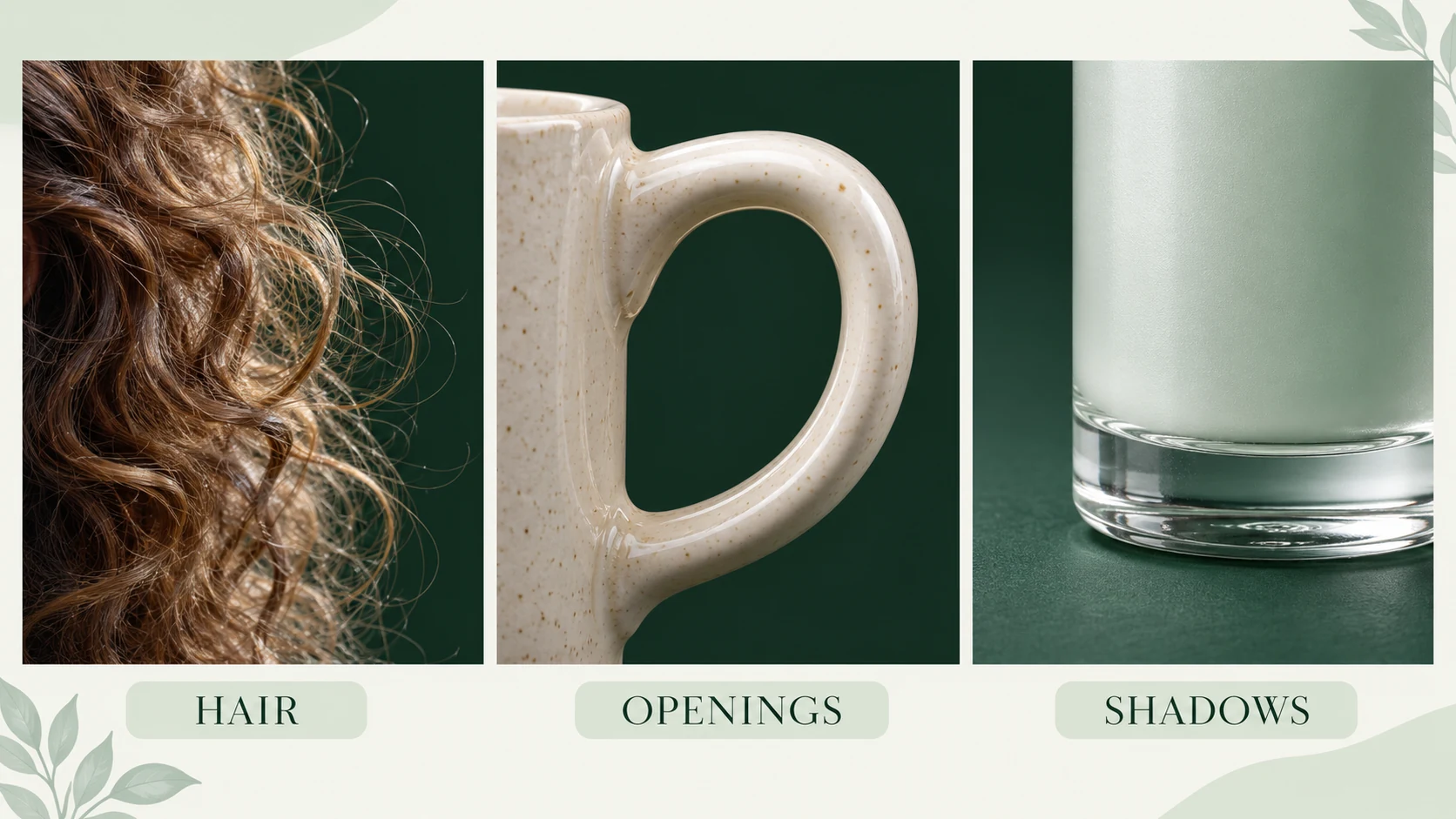
Removing a photo background means separating the subject from its surroundings. The important part is what survives the separation: loose hair, a handle’s opening, the edge of a glass, or a soft shadow beneath a product. A quick cutout that loses those details may create more work when you place it into a design.
Also decide what you need at the end. A subject on white is useful for some layouts, but it is different from a transparent cutout. That distinction matters regardless of which editor you use.
Here is a practical workflow for describing the edit in XPT, checking the result, and deciding when a dedicated cutout tool is the better next step.
Remove the Background With a Focused XPT Request
1. Choose the original and define the subject
Start with the clearest source you have. A screenshot of a compressed image makes delicate boundaries harder to judge, particularly around hair and translucent objects. Keep an untouched copy for comparison.
Open XPT’s AI Image Editor and use the image-editing options available in your session to provide the source. If image input is unavailable, prepare the brief there and apply it in an editor that accepts the photo. Identify the subject by visible details: the person in the green jacket, the ceramic cup at the center, or the bicycle in the foreground.
Avoid a vague instruction such as keep the main thing. In a crowded picture, the object you consider central may not be the most visually prominent one. Say whether nearby accessories belong with the subject.
2. State what removal should preserve
A useful brief names both the unwanted surroundings and the boundaries that need care. The image editing prompt templates can help you turn those requirements into a focused request. For a portrait, that could include flyaway hair, glasses, earrings, and the space between an arm and the body. For a product, it may include handles, thin straps, and a contact shadow.
Request transparency if that is the goal, but verify the actual saved file later. A written request does not establish that the current workflow supports an alpha channel or a particular export format.
3. Inspect the first result before requesting more changes
Compare the original and edited image side by side. First look for missing parts of the subject, then for leftover background. This order helps you avoid approving a clean-looking outline that has quietly removed a sleeve edge or a few strands of hair.
If a boundary needs revision, describe its location instead of asking to improve the whole picture. For example, identify the pale fringe around the left shoulder or the background remaining inside the cup handle. Keep unrelated lighting and retouching changes out of this pass.
4. Check the saved result in its destination
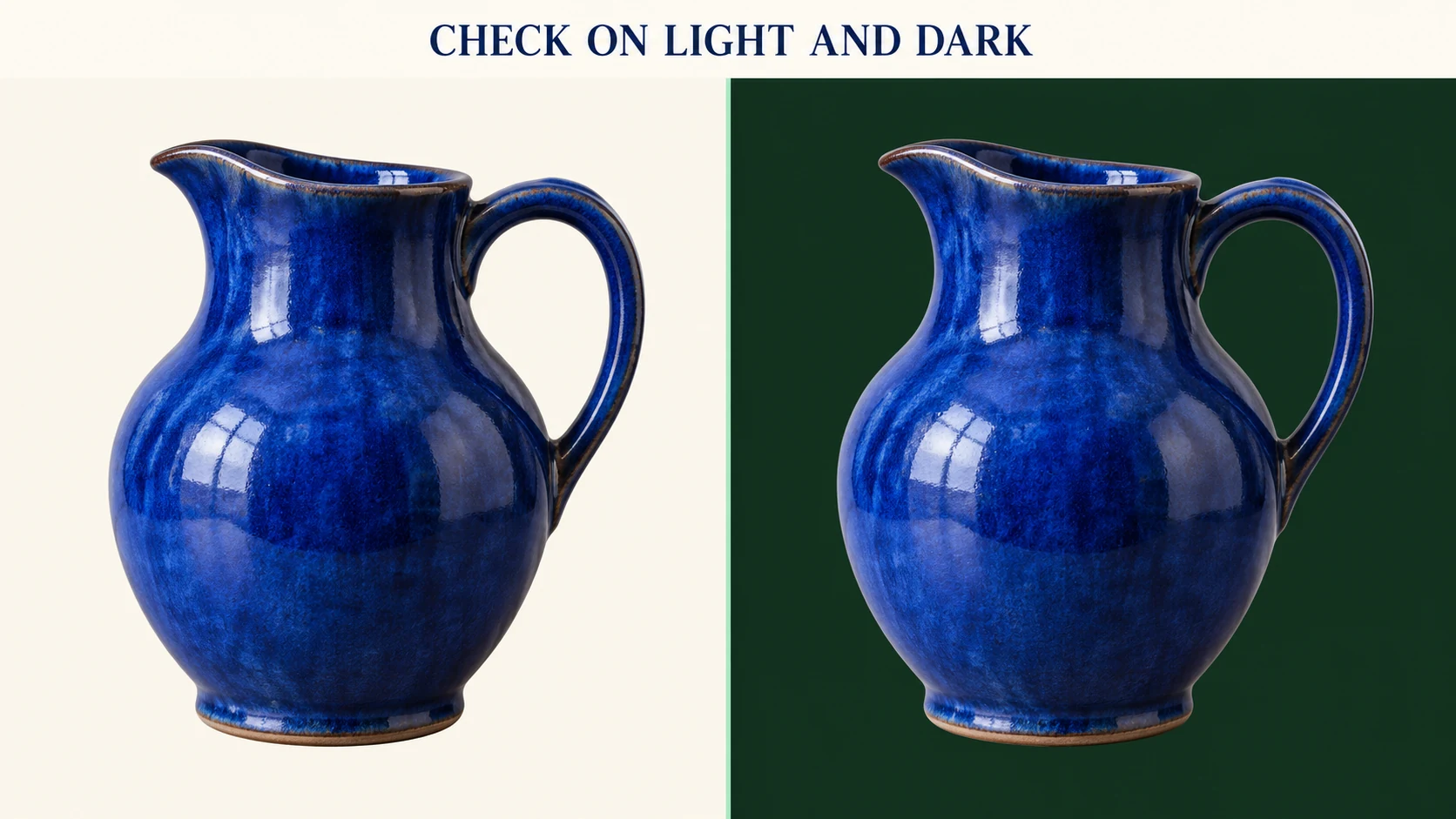
Place the saved image over a contrasting background in a design editor. Try both a light and a dark color. This exposes pale halos, dark fringes, and areas that looked transparent only because the preview background matched them.
A checkerboard pattern drawn into an image is still part of the image. Real transparency lets the new background show through. If your XPT result is flattened, use a dedicated background-removal editor for the final cutout rather than repeatedly requesting the appearance of transparency.
Give Difficult Edges Their Own Treatment
Hair is made of overlapping soft and hard boundaries. Removing every stray strand may make a portrait look artificially trimmed. Keep the important silhouette, then judge whether the remaining fine detail looks natural at the intended size.
Glass is different. A clear glass contains reflections and transmitted background color, so keeping its outline alone may not produce a believable isolated object. Test it against the destination background early. A new product photograph on a suitable backdrop may be more reliable than rebuilding complex transparency.
Handles, straps, and spokes create interior openings. An outline can be correct while those openings still contain the old background. Check them individually. The same applies to the spaces between fingers or beneath a bent arm.
Shadows deserve a separate decision. A soft contact shadow can help a product sit naturally on a page. A large directional shadow from the old scene may clash with the new setting. Describe which one you want to keep instead of simply requesting no background.
Remove, Replace, or Reframe?
Choose removal when you need a reusable subject cutout. Choose replacement when you want a finished scene with a new setting. Choose a different crop when the unwanted surroundings can disappear without cutting into the subject.
The AI Background Changer is a relevant next step when a new setting is the actual goal. In that brief, describe camera perspective, lighting direction, and the surface beneath the subject. A beach at sunset and a studio wall need different shadow and color decisions.
Do not keep regenerating an entire portrait just to remove a thin edge artifact. A local mask adjustment in a conventional editor may solve that problem with less change to the original person.
A Simple Final Check
Before using the cutout, answer four questions: is every required part of the subject present, are interior openings clear, do the edges work on the destination background, and does the saved file behave as expected?
Check at the actual display size as well as a close view. Small halos that dominate a zoomed crop may be invisible in a thumbnail; a missing finger remains a problem at any size. Let the intended use guide the final decision.
Keep the source file alongside the finished cutout. You may need a different shadow treatment, a wider crop, or a new background later. A clean result is one you can place confidently, with the subject’s identity and shape still intact.