A product mockup helps you show an idea in context before arranging a full shoot. You can place packaging on a shelf, preview a T-shirt design, show an app on a phone, or test a new campaign scene.
For an accurate result, treat the real product or design file as the source of truth. AI can build the scene around it, but labels, logos, and small details should be checked against the original before publication.
What Makes a Mockup Useful?
A mockup needs three things:
- A clear product or design reference
- A context that suits the audience
- Realistic scale, light, and contact with the scene
A mockup is most useful when it answers a specific question: How will the product look on a desk? Does this packaging stand out on a shelf? Does the design work on apparel?
Create a Product Mockup With AI
1. Start With the Real Product
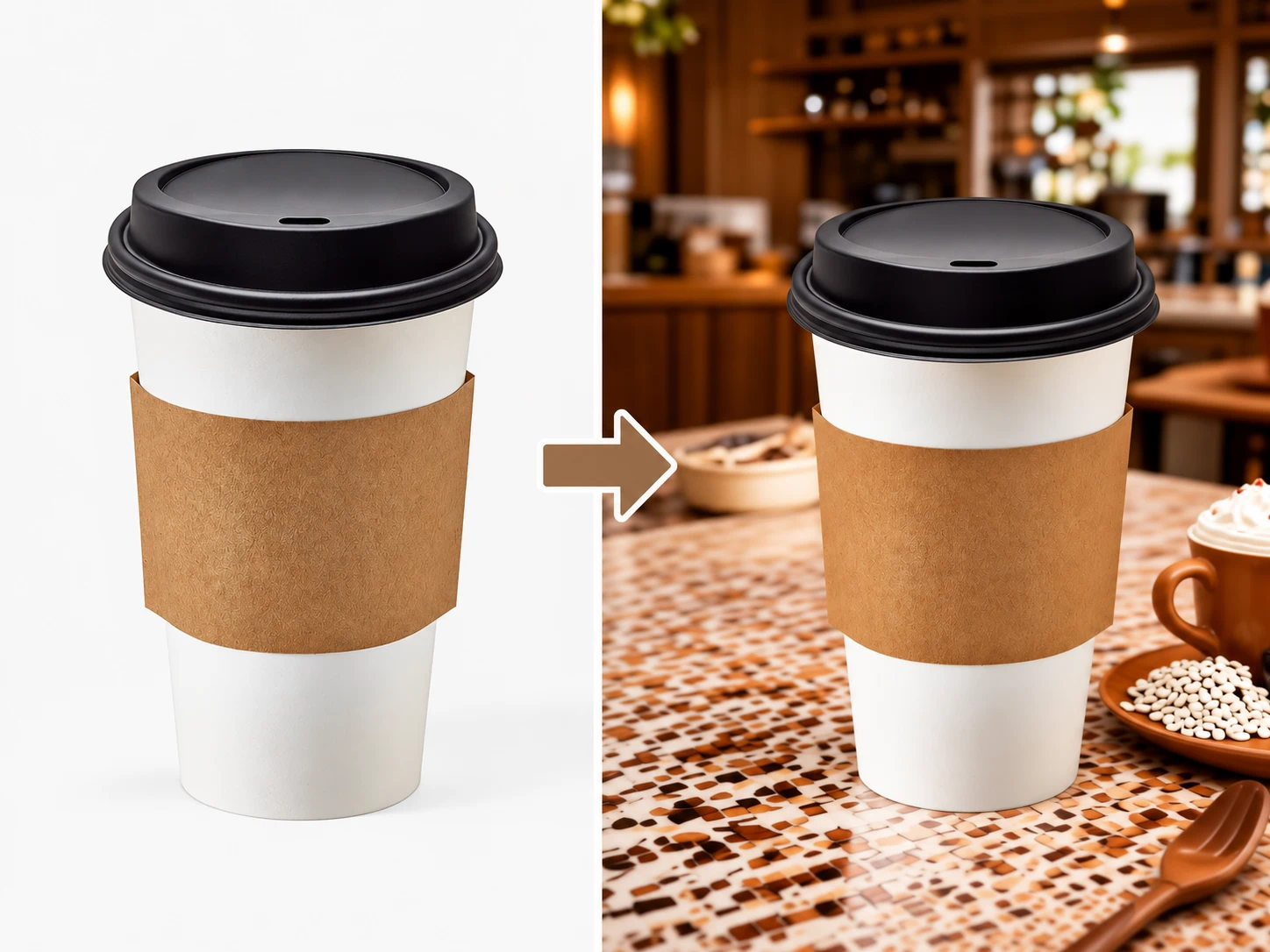
Upload a clean product photo, packaging image, or design asset to XPT. Use additional reference images when the product has important side views, label placement, or surface details.
“Use Image 1 as the exact product reference. Preserve its shape, color, materials, proportions, label placement, and visible details. Create only the scene around the product.”
2. Define the Mockup Scenario
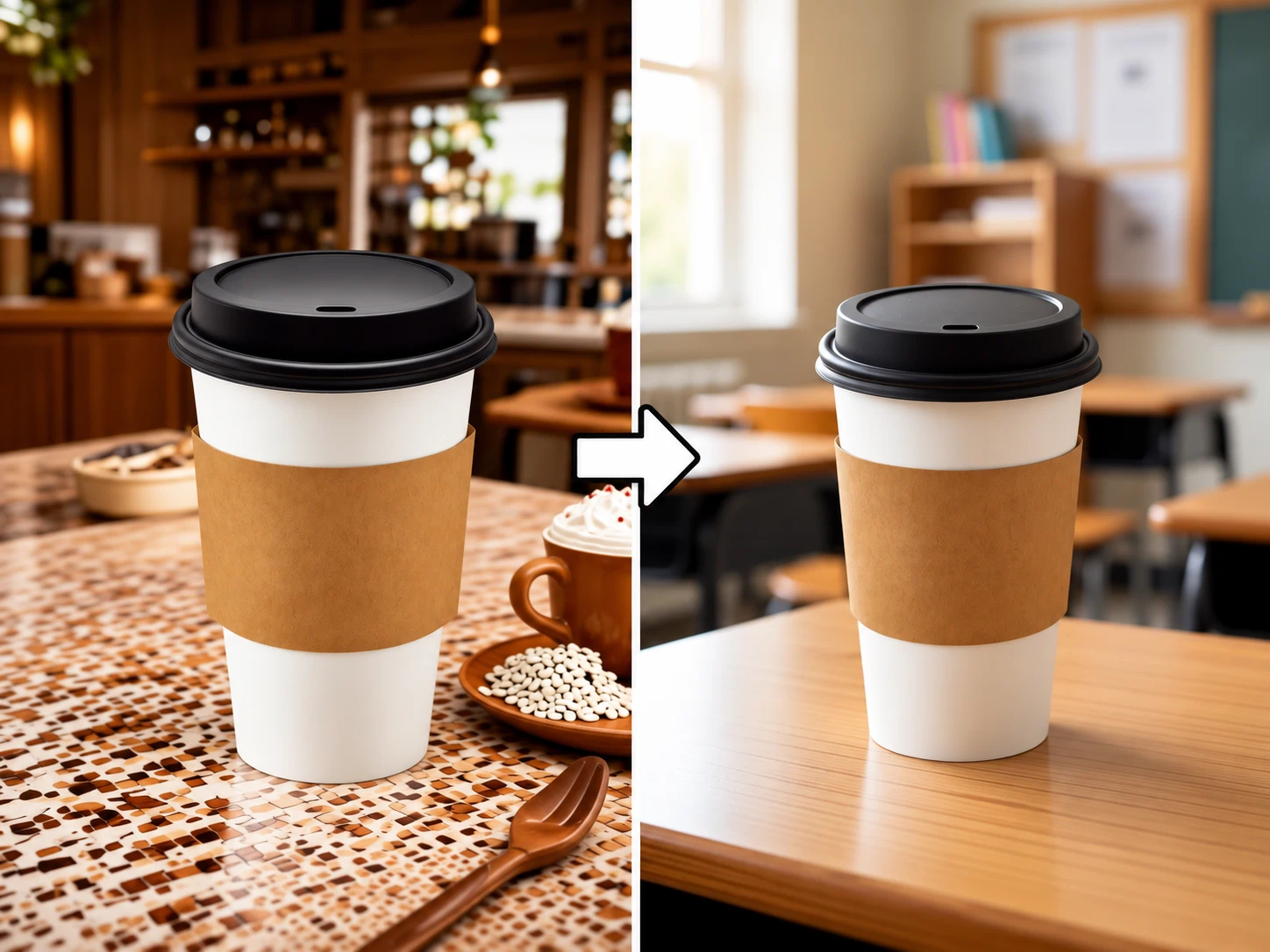
Describe the audience, setting, surface, lighting, and camera angle.
“Place this coffee cup on a classroom desk. Use soft daylight from the left, a shallow depth of field, and a clean editorial composition. Keep the cup upright and fully visible.”
3. Review Product Accuracy
Compare the mockup with the source image before using it.
Check:
- Product shape and proportions
- Label position and readable text
- Materials and colors
- Number of components
- Contact shadow and reflections
- Scale relative to nearby objects
- Props that may look included with the product
10 AI Product Mockup Prompts
| Use Case | Prompt |
|---|---|
| Skincare bottle | Use Image 1 as the exact skincare bottle reference. Place it on a pale stone bathroom counter with soft daylight from the left. Preserve the bottle shape, cap, color, label placement, proportions, and materials. Add a subtle contact shadow and no extra text. |
| Coffee packaging | Create a premium mockup of this coffee bag on a warm wooden counter beside a plain ceramic cup. Preserve the package shape, color, logo area, and proportions. Use soft morning light and leave the label readable. |
| T-shirt design | Create a flat-lay mockup of a plain white cotton T-shirt on a light gray surface. Place the uploaded artwork centered on the chest area. Preserve the artwork proportions and keep the shirt free of extra graphics, text, or logos. |
| Phone app | Show the uploaded app screen on a modern smartphone held naturally in one hand. Preserve the screen layout, text, icons, and colors exactly. Use a clean neutral workspace background and realistic screen reflections. |
| Book cover | Create a hardcover book mockup standing upright on a simple desk. Apply the uploaded cover artwork to the front cover without changing its layout, text, or colors. Use soft side light and a minimal background. |
| Candle packaging | Place the exact candle jar on a light stone tray with a few neutral natural props. Preserve the jar shape, lid, label position, color, and scale. Use warm soft lighting and no added branding. |
| Beverage can | Show the uploaded beverage can standing on a cold metal surface with realistic condensation. Preserve the can shape, label colors, logo position, and proportions. Use a dark studio background with controlled highlights. |
| Tote bag | Create a clean canvas tote bag mockup hanging from a wooden hook. Apply the uploaded artwork to the center of the bag. Keep the fabric folds natural and preserve the artwork without added text. |
| Desktop product | Place the exact product on a modern office desk beside a notebook and keyboard. Preserve the product’s design, color, label, and proportions. Use natural window light and leave open space on the right for copy. |
| Gift box | Create a seasonal gift-box mockup using the uploaded package design. Keep the box dimensions, artwork, and colors unchanged. Place it on a neutral surface with a separate ribbon and subtle warm lighting. |
Use Mockups for Concepts, Not Product Claims
AI mockups are useful for campaign direction, packaging previews, and concept testing. They should not create false impressions about:
- Included accessories
- Product functions
- Package size
- Materials
- Label text
- Product color
- Results or performance
For a product listing, compare every final visual against the original. See How to Create Product Photos for E-commerce for a product-accuracy workflow.
Common Problems and Fixes
| Problem | Prompt Adjustment |
|---|---|
| Product shape changes | State that the product reference controls shape, proportions, materials, and visible details. |
| Label text is wrong | Preserve the original label or add verified text separately in a design tool. |
| Product floats | Request realistic surface contact and a matching contact shadow. |
| Props look included | State that every supporting object is separate and not part of the product. |
| Product scale feels wrong | Compare its height or width with a nearby known object. |
| Mockup looks too busy | Use a simple setting and one clear focal product. |
Start with one purpose and one setting. Once the product is accurate, adapt the approved visual direction into banners, social posts, email images, or landing-page graphics.