To enhance photo quality with AI, identify the main visible problem, provide the best source available, request a restrained correction, and compare the result with the original. A dark portrait, noisy night scene, and flat product photo need different instructions. Asking for every detail to become perfect can produce an image that is more dramatic but less faithful.
Enhancement concerns how a photo looks. Upscaling concerns its pixel dimensions. A workflow may address both, but a clearer preview does not prove the file is larger or that missing details have been recovered accurately. The XPT tutorial below focuses on editing instructions and comparison, followed by practical checks for natural color, texture, and subject identity.
How to Improve a Photo with XPT
1. Choose the Source and the Main Problem
Open the AI Image Editor and provide the source through its available image-input workflow. Use the highest-quality version you have and keep an untouched copy. A compressed screenshot gives the edit less reliable information than the original photo.
Name the issue you want to fix. For a person photographed beside a window, the face might be too dark while the outside view is already bright. For a product, the problem might be a color cast rather than softness. Those observations give the request a meaningful priority.
2. Say What Must Stay Unchanged
Describe the boundaries of the edit: facial structure, expression, clothing, product geometry, labels, crop, or background. Include the atmosphere you want to retain. A low-light restaurant photo can remain warm and subdued without leaving the subject unreadable.
The public XPT directory establishes a prompt-based image-editing route, not a dedicated enhancement slider or fixed output resolution. Use the controls actually available in your interface and inspect the returned file. Do not treat a written request for unchanged details as a guarantee that the model preserved them.
3. Generate a Focused Correction
“Improve the lighting in this photo so [subject] is easier to see. Keep the original mood and light direction; do not brighten every shadow equally. Use restrained noise reduction and preserve skin, hair, fabric, and surface texture. Keep the face, expression, pose, object geometry, text, crop, and background unchanged. Do not beautify the person or invent fine detail in blurred areas.”
For a product photo, replace the portrait instructions with the specific material, color, and label requirements. For a landscape, identify the sky and distant objects that should not be reconstructed into a different scene. Submit one main correction before adding another.
4. Compare the Result at Two Viewing Sizes
First, view the entire photo at the size where it will appear. Check whether the subject is easier to read and the color still feels believable. Then inspect a few important regions closely: eyes, hair, fabric, labels, or repeated patterns.
If the image looks cleaner because texture has disappeared, the correction may be too strong. If a product label becomes sharp but changes lettering, the result has introduced an error. Keep the original beside the edit so these changes are easier to catch.
5. Refine One Issue and Save the Accepted Version
Ask for a local revision, such as reducing the bright outline around hair or restoring the original skin texture. Include the image version you want revised and the details already approved. Do not keep processing a result whose identity or geometry has drifted.
When the real problem is a distracting setting, the AI Background Changer is a related next task. Treat that as a creative change after accepting the quality correction, rather than hiding a background replacement inside an enhancement request.
Diagnose Before You Enhance
| What you notice | Useful first direction | What to inspect afterward |
|---|---|---|
| Subject too dark | Lift the subject while controlling highlights | Skin tone, highlight clipping, original mood |
| Grain in shadow areas | Reduce distracting noise conservatively | Hair, fabric, and surface texture |
| Flat or tinted color | Correct the cast and keep believable contrast | Neutral surfaces and important product colors |
| Mild softness | Improve useful local definition | Halos, false detail, altered lettering |
| Too few pixels | Assess a separate enlargement task | Actual saved dimensions and reconstruction |
The table is a way to write a better brief, not a promise that every degraded source can be repaired. If the original contains severe blur or clipped highlights, an attractive result may rely on invented information. Use a better source whenever accuracy is more important than appearance.
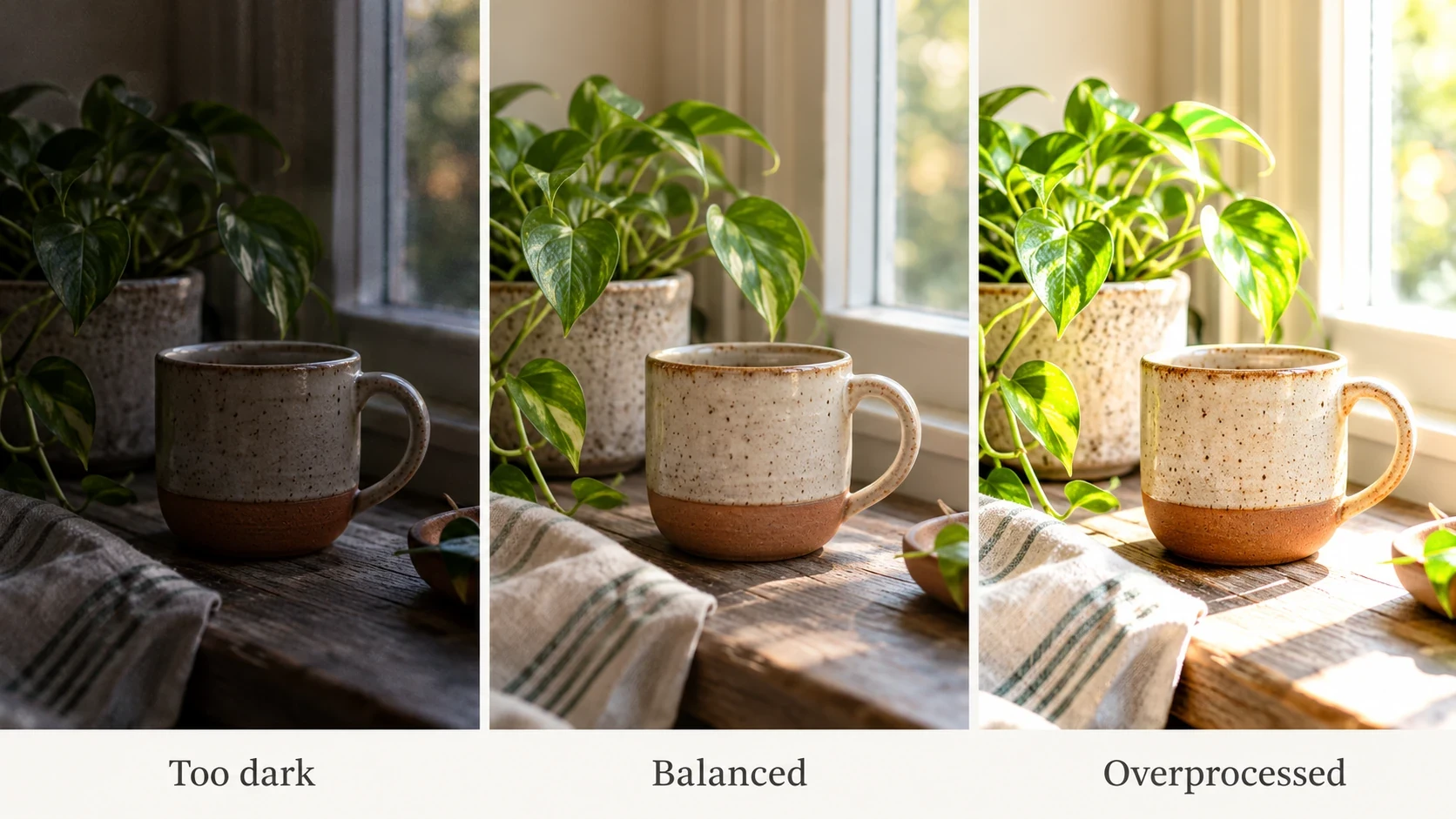
Keep Portrait Texture and Identity Intact
For portraits, distinguish visibility from beautification. You may want the face easier to see without changing cheek shape, age cues, eye color, or expression. State that directly and compare those features after the edit.
Natural-looking skin is not uniformly smooth. Watch for waxy patches, repeated hair strands, reshaped teeth, and inconsistent detail between the face and clothing. A restrained version can be more usable than an intensely polished result that no longer resembles the person.
Do not describe the outcome as an accurate restoration solely because it looks convincing. A photograph can be visually improved while becoming less reliable as a record of the subject.
Separate Real Improvement from Aggressive Sharpening
Strong edge contrast can make a small preview feel crisp while creating outlines that look artificial at full size. Inspect high-contrast boundaries such as hair against a window, a building against the sky, and dark lettering on packaging.
Compare two conservative versions rather than pushing every correction further. Review them at the same display size and crop. If one result only seems better because it is shown larger or brighter, normalize the comparison before choosing it.
For a documented example of a dedicated enhancement workflow, Fotor's official overview separates corrections such as lighting, noise, and color. That provides useful task vocabulary, but its controls and product promises should not be transferred to XPT.
Photo Enhancement Questions
Can AI make a severely blurred face accurate again? It may generate plausible features, but that is not proof of the original appearance. Use a sharper source when identity matters.
Should I enhance the photo several times? Keep the original and compare fresh attempts. Repeated edits can compound artifacts or make invented texture look established.
How do I know the photo is ready? Check the subject, color, texture, geometry, and saved dimensions. Review the image at its intended placement, and confirm that the improvement serves the use rather than simply looking more processed.
Improve What Matters and Stop
Choose one visible problem, protect the details that make the photo trustworthy, and compare every result with the source. A useful enhancement makes the image easier to use while preserving the subject you meant to show.