Choosing a new hair color is difficult when you can only imagine the result from a color swatch. AI hair color tools let you preview different shades on your own photo before making a real change.
You can compare warm and cool tones, natural browns, blondes, reds, fashion colors, and darker shades while keeping your face and hairstyle consistent.
What Can You Test With AI?
You can preview:
- Brunette and chocolate brown
- Ash, beige, and golden blonde
- Auburn, copper, and burgundy
- Jet black and soft black
- Rose, lavender, and pastel colors
- Highlights and balayage
- Ombre and gradient color
- Root-to-tip changes
- Subtle gray or silver tones
The preview is useful for comparing direction and contrast. It cannot guarantee the exact result of a salon treatment, especially when the starting hair color is very dark or previously dyed.
How to Try Hair Colors on Your Photo
1. Upload a Clear Photo
Open XPT and upload a photo where your hairline, face, and current hair are visible.
Use a photo with:
- Natural or neutral lighting
- Minimal color filters
- No hat covering the hair
- Hair visible around the face
- A clear view of the roots and ends
Strong colored lighting can make the AI misread both your hair color and skin tone.
2. Request One Color at a Time
Describe the shade precisely instead of writing only “change my hair color.”
Try:
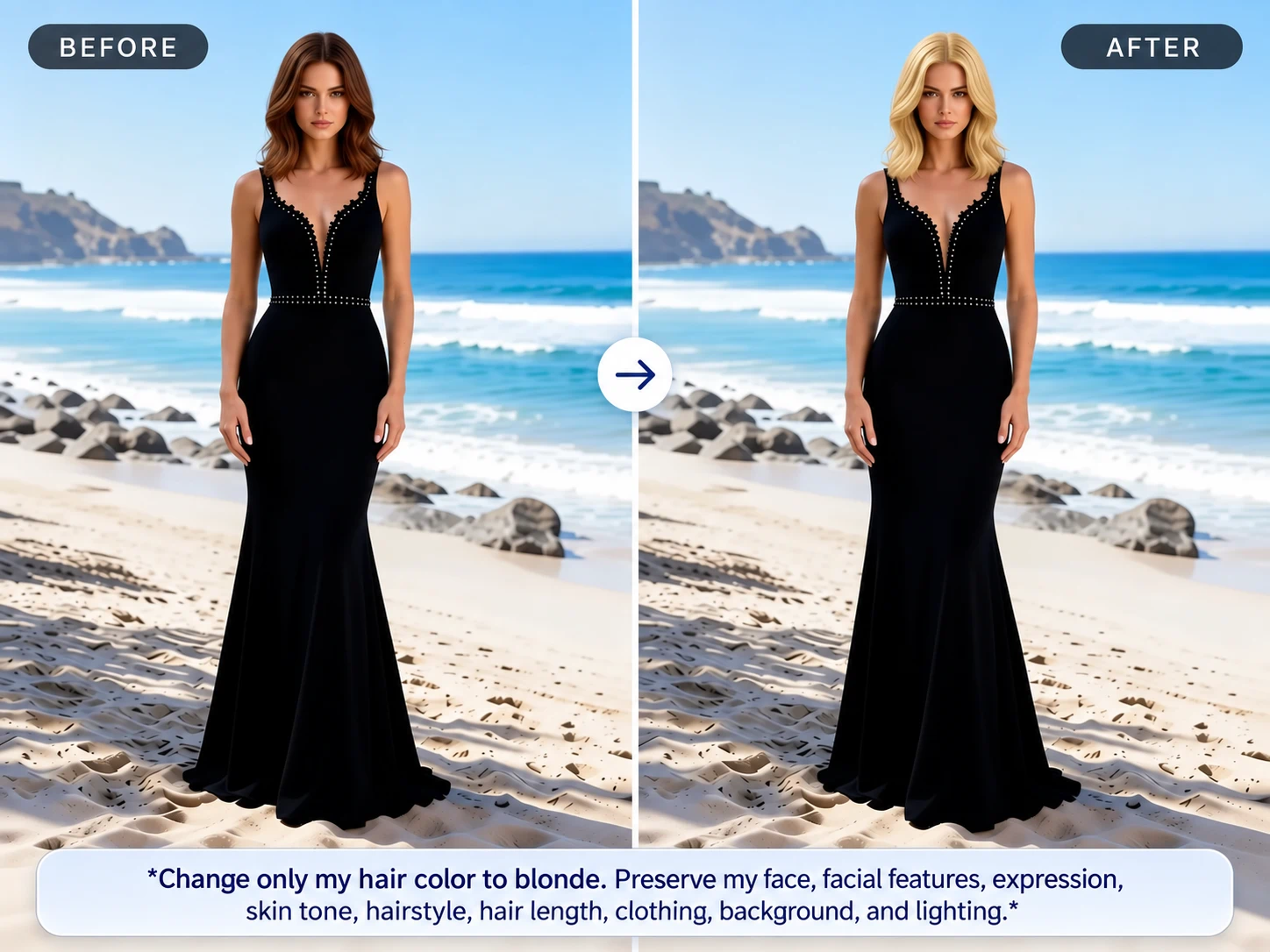
“Change only my hair color to blonde. Preserve my face, facial features, expression, skin tone, hairstyle, hair length, clothing, background, and lighting.”
3. Compare the Results
Review each version under similar viewing conditions.
Look at:
- How the shade contrasts with your skin tone
- Whether the roots and ends look believable
- Whether the color follows the hair’s natural highlights
- Whether your face has changed
- Whether the color looks different under warm and cool light
- Whether the result matches the level of maintenance you want
You can also compare the hair-color result with What Hairstyle Suits Me? if you want to test both cut and color.
Describe Hair Color More Precisely
A hair-color prompt works better when it includes:
| Prompt Element | Example |
|---|---|
| Base color | Medium brown |
| Undertone | Warm golden, neutral, or cool ash |
| Intensity | Soft, rich, muted, or vivid |
| Placement | Full color, roots, highlights, balayage, or ends |
| Finish | Glossy, natural, matte, or dimensional |
| Preservation | Keep the face, haircut, pose, and background unchanged |
Instead of “Make my hair blonde,” use:
“Change my hair to a neutral beige blonde with slightly darker roots and soft natural dimension. Keep the same haircut, face, skin tone, expression, clothing, background, and lighting.”
10 AI Hair Color Prompts
| Hair Color or Style | Prompt |
|---|---|
| Chestnut brown | Change only my hair color to a medium chestnut brown with subtle warm dimension. Preserve my face, hairstyle, hair length, skin tone, expression, clothing, background, and lighting. |
| Cool ash brown | Apply a cool ash-brown color to my hair with muted beige undertones. Keep the original hairstyle, face, skin tone, expression, pose, clothing, and background unchanged. |
| Chocolate brown | Change my hair to a rich chocolate brown with soft natural highlights. Preserve my exact facial features, hairstyle, hair length, skin tone, expression, clothing, and lighting. |
| Beige blonde | Change my hair to a neutral beige blonde with slightly darker roots and realistic tonal variation. Keep my face, hairstyle, hair length, expression, skin tone, background, and lighting unchanged. |
| Golden blonde | Apply a warm golden-blonde color with natural highlights and darker lowlights. Preserve the original hair shape, face, skin tone, expression, clothing, background, and camera angle. |
| Auburn | Change my hair to a natural auburn shade that combines medium brown with subtle copper-red tones. Keep my face, haircut, hair texture, skin tone, expression, and background unchanged. |
| Copper | Apply a realistic copper hair color with soft orange and warm red dimension. Preserve my facial features, hairstyle, hair length, skin tone, expression, clothing, and original lighting. |
| Burgundy | Change only my hair color to a deep burgundy red with subtle dimensional highlights. Keep the face, hairstyle, pose, skin tone, clothing, background, and lighting unchanged. |
| Jet black | Change my hair to a natural jet-black color with soft realistic shine. Preserve the original haircut, hair texture, face, skin tone, expression, clothing, background, and camera framing. |
| Rose pink | Apply a soft rose-pink fashion color with slightly darker roots and realistic strand variation. Keep my face, hairstyle, hair length, expression, clothing, background, and lighting unchanged. |
Compare Warm and Cool Shades
If you are unsure which direction suits you, create a comparison sheet:
“Create a four-panel hair-color comparison using the same person, hairstyle, pose, lighting, and background in every panel. Show neutral brown, cool ash brown, warm chestnut, and soft copper. Preserve the person’s face, skin tone, expression, and hair shape exactly.”
This makes the comparison more useful than generating four separate images with different framing.
Remember that the result depends on the photo’s lighting. A shade may appear warmer or cooler under different light, so compare several versions before choosing a direction.
Try Highlights and Balayage
Full-color changes are not the only option. You can also preview partial color placement.
For example:
“Keep my natural medium-brown base color. Add subtle caramel balayage from the mid-lengths to the ends, with soft blended transitions and no harsh stripes. Preserve my face, hairstyle, hair texture, skin tone, expression, clothing, background, and lighting.”
Be specific about:
- Root color
- Highlight placement
- Transition softness
- Face-framing pieces
- Amount of contrast
- Whether the ends should be lighter or darker
Common Problems and Fixes
| Problem | Prompt Adjustment |
|---|---|
| Face changes | State that facial identity, expression, skin tone, and age must remain unchanged |
| Hair looks like a flat filter | Request realistic strands, highlights, lowlights, and natural tonal variation |
| Roots look unnatural | Specify a root color and a gradual transition |
| Haircut changes | Tell the AI to preserve the exact hairstyle, length, parting, and shape |
| Skin tone changes | Add “keep the original skin tone and lighting unchanged” |
| Color is too bright | Request a muted, natural, or lower-saturation version |
| Color looks too dark | Ask for visible tonal dimension and realistic reflected light |
| Background changes | State that only the hair color may be edited |
Keep the Original Haircut
Hair color previews can accidentally change the haircut or texture. Add this instruction when the cut already works:
“Change only the hair color. Preserve the exact haircut, parting, length, volume, curl pattern, hairline, face, pose, clothing, background, and lighting.”
If you want to test both hairstyle and color, change one variable first. This makes it easier to understand which change affects the final look.
Make a More Informed Choice
AI previews help you compare color families before booking an appointment or buying dye. Use them to identify preferences such as:
- Warmer or cooler tones
- Natural or high-contrast colors
- Full color or partial highlights
- Low-maintenance or high-maintenance looks
- Soft change or dramatic transformation
Treat the preview as a visual reference rather than a guarantee of the exact salon result. Hair history, base color, porosity, and lighting can all affect the final outcome.
Upload your photo to XPT, test several shades from the same original image, and save the versions you want to discuss with your stylist.