A flat white sky can make an otherwise strong photo feel unfinished. AI sky replacement lets you test a clearer blue sky, soft clouds, sunset color, or a dramatic storm without changing the building, landscape, person, or product in the foreground.
A convincing result depends on one detail: the new sky must agree with the scene’s existing light.
Choose a Sky That Fits the Photo
Before replacing the sky, check the original image for:
- Direction of sunlight
- Strength and length of shadows
- Existing color temperature
- Time of day
- Reflections in windows or water
- Horizon line and tree edges
- Weather already visible in the scene
A golden sunset will look unnatural if the foreground still has bright midday shadows. For a subtle result, start with a sky that matches the original scene’s lighting.
How to Replace the Sky With AI
1. Upload a Clear Outdoor Photo
Open the AI Image Editor and upload the original image.
The best source images have a visible horizon and clearly defined edges around buildings, trees, mountains, or people.
2. Describe Only the New Sky
Keep the foreground protected in the prompt:
“Replace only the sky with a natural soft-blue daytime sky and thin white clouds. Preserve the building, trees, ground, people, camera angle, framing, and original daylight. Match the direction and softness of the existing shadows.”
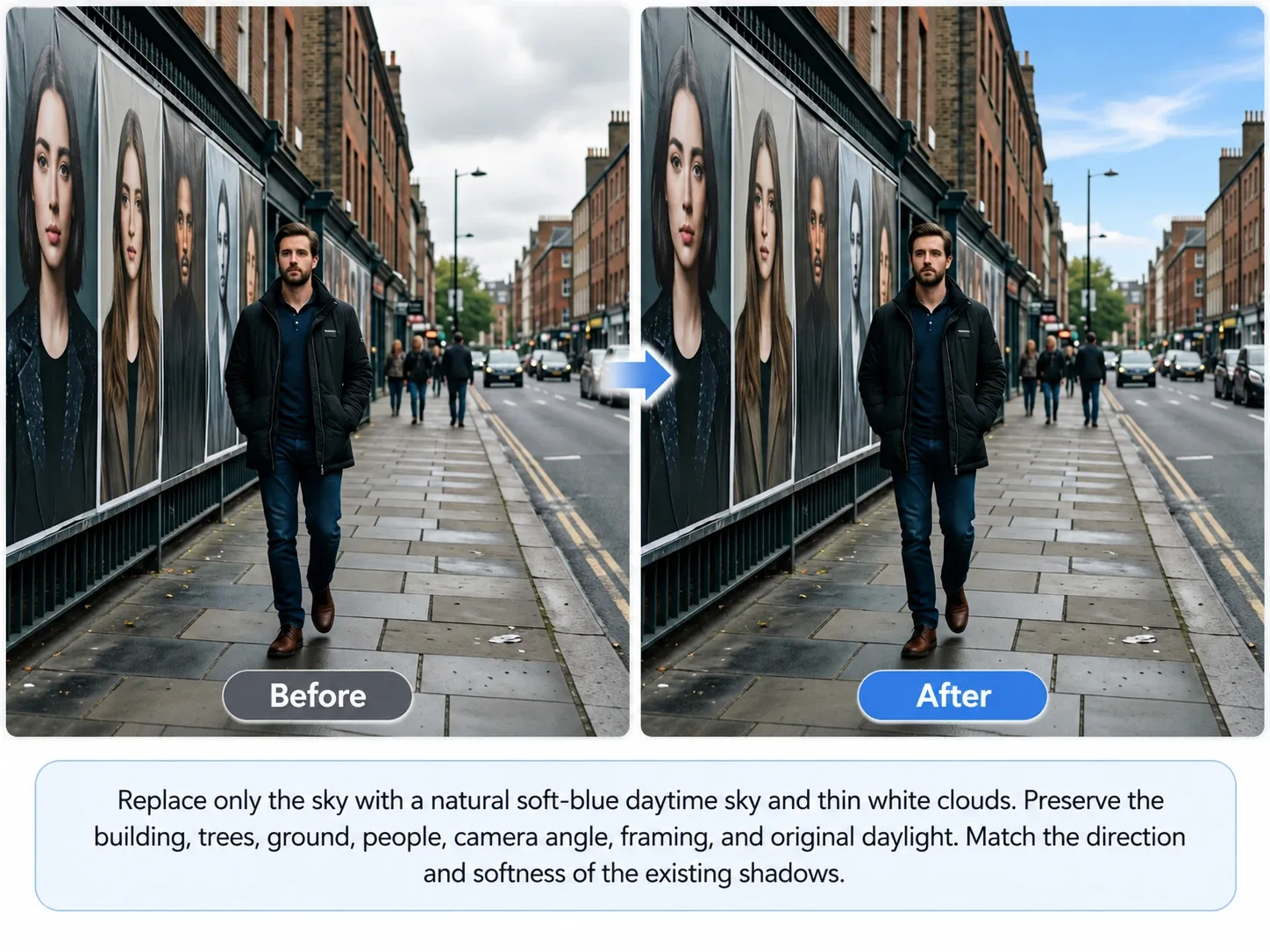
3. Check the Foreground
Review the result at full size. Look closely at:
- Rooflines and treetops
- Hair and clothing edges
- Windows and water reflections
- Horizon clarity
- Shadow direction
- Color spill on the foreground
- Repeated or unnatural cloud patterns
If the foreground changes too much, return to the original image and request a sky-only edit.
10 AI Sky Replacement Prompts
| Sky Style | Prompt |
|---|---|
| Clear blue sky | Replace only the sky with a clear natural blue sky and a few thin white clouds. Preserve the entire foreground, including buildings, trees, people, shadows, perspective, and camera framing. Match the existing daylight. |
| Soft cloudy sky | Replace the sky with soft layered gray-white clouds that suit a bright overcast day. Keep the landscape, people, building edges, and original composition unchanged. Use even natural light with no dramatic new shadows. |
| Golden-hour sunset | Replace only the sky with a warm golden-hour sunset, featuring soft orange and pale pink clouds. Keep the foreground unchanged and add only subtle warm light that matches the existing shadow direction. |
| Pink sunset | Change the sky to a calm pink-and-lavender sunset with gentle clouds near the horizon. Preserve the subject, architecture, landscape, framing, and original scene geometry. Use restrained warm reflections where appropriate. |
| Dramatic storm | Replace the sky with realistic dark storm clouds, distant rain, and soft cool daylight. Preserve the foreground structures, people, ground, camera angle, and perspective. Do not add lightning unless requested. |
| Mountain landscape | Replace only the sky above the mountains with a crisp pale-blue sky and high wispy clouds. Preserve the mountain contours, trees, lake, horizon, reflections, and original daylight direction. |
| Beach scene | Replace the sky with a bright coastal sky featuring soft white clouds and light blue tones. Keep the beach, waves, people, shoreline, shadows, and horizon unchanged. Match the natural midday light. |
| City skyline | Replace the sky above the city with a clear late-afternoon sky and subtle warm clouds. Preserve every building, window reflection, street, person, and camera perspective. Keep the lighting realistic and restrained. |
| Twilight sky | Replace only the sky with a deep blue twilight gradient and a few faint clouds. Preserve the foreground architecture, lights, people, and composition. Add only subtle cool ambient light to match the new sky. |
| Northern lights | Replace the sky with realistic green and violet aurora lights above the existing landscape. Preserve the land, trees, water, people, camera angle, and composition. Use a dark night sky and believable low-light reflections. |
Use a Reference Sky
If a specific sky has the color or cloud pattern you need, upload it as a reference.
“Use Image 1 as the scene and Image 2 only as the sky reference. Replace the sky in Image 1 with the cloud pattern and color mood of Image 2. Preserve Image 1’s foreground, buildings, people, landscape, perspective, and framing. Match the new sky to the original scene’s lighting.”
For more reference-image guidance, see How to Edit an Image With a Reference Image.
Common Problems and Fixes
| Problem | Prompt Adjustment |
|---|---|
| The foreground changes | State that only the sky may be edited and list the foreground elements to preserve. |
| The sky edge looks rough | Ask for clean natural masking around trees, roofs, hair, and mountains. |
| Shadows do not match | Describe the existing light direction and request matching ambient light. |
| Water reflections look wrong | Preserve existing reflections or request subtle reflections of the new sky. |
| Clouds look repeated | Ask for natural cloud variation without obvious repeated patterns. |
| The horizon shifts | State that the horizon, landscape, and camera framing must remain unchanged. |
| The scene becomes too dramatic | Request restrained color, soft contrast, and realistic atmospheric conditions. |
Sky Replacement vs. Full Background Change
Use sky replacement when the landscape or location already works and only the sky needs improvement.
Use How to Change Photo Background when you want to replace the entire setting. If the scene needs a completely different time of day, use a day-to-night prompt instead.
Start with a sky that fits the existing light, preserve the foreground, and inspect the edges before using the final image.