AI can replace an unwanted background without requiring a new photo shoot. You can move a portrait into a studio, place a product in a lifestyle scene, clean up a travel photo, or create a background that fits a campaign.
The challenge is keeping the original subject unchanged while making the new environment look believable.
What Makes a Good Background Prompt?
A useful prompt explains three things:
- What must remain unchanged
- What background should be created
- How the subject and background should blend
For example:
“Replace only the background with a warm gray photography studio. Preserve the person’s exact identity, face, hairstyle, clothing, pose, body proportions, and camera angle. Match the original lighting direction and create a natural contact shadow.”
Change a Photo Background With AI
1. Upload a Clear Photo
Open XPT and upload the original image.
Choose a photo with clear subject edges, especially around:
- Hair
- Glasses
- Clothing
- Hands
- Transparent objects
- Product handles
- Fine accessories
Images with strong blur, heavy shadows, or a background similar in color to the subject may need extra refinement.
2. Describe the Replacement Background
Specify the location, colors, materials, lighting, and depth.
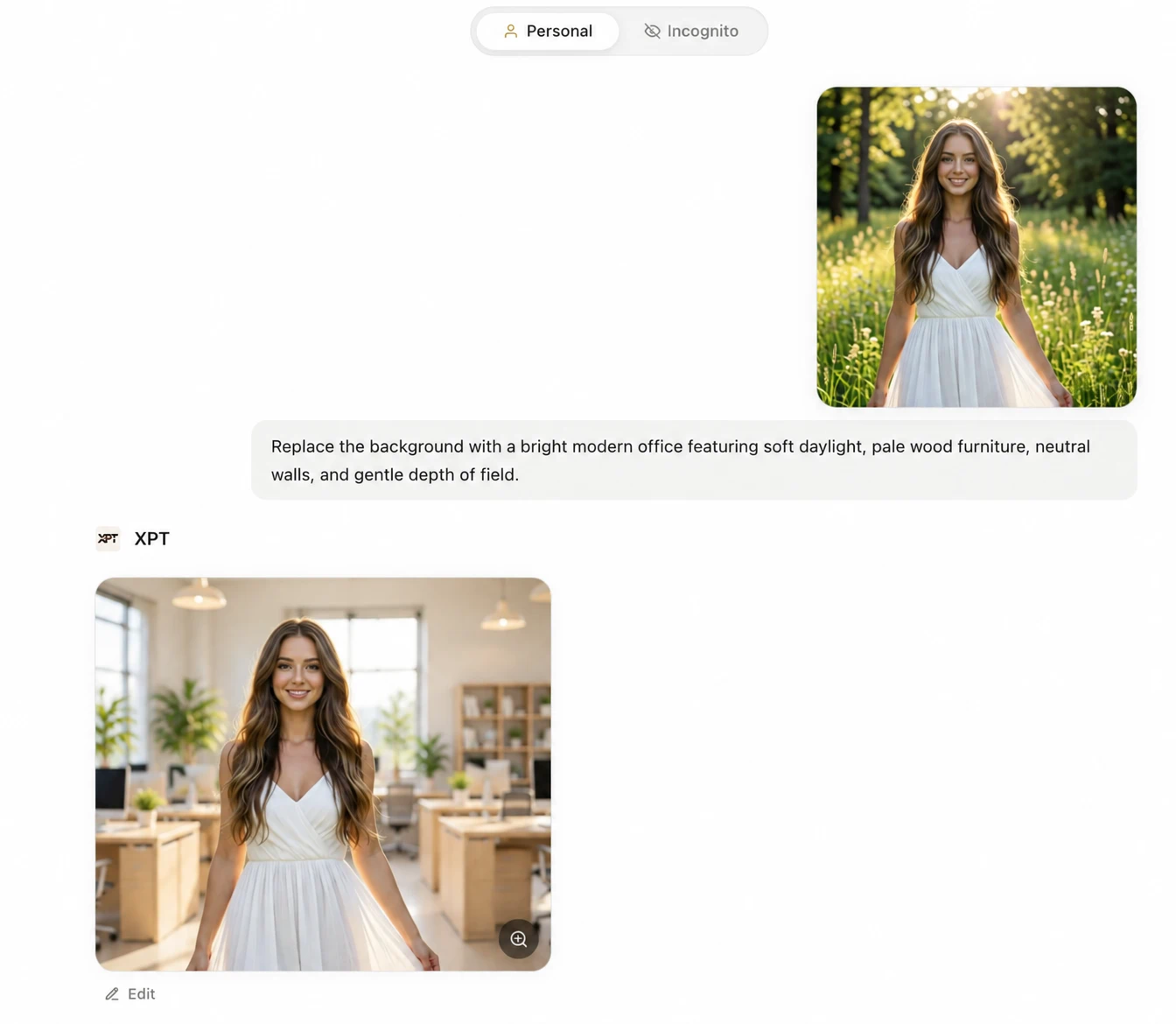
Instead of writing “Add a better background,” use:“Replace the background with a bright modern office featuring soft daylight, pale wood furniture, neutral walls, and gentle depth of field.”
3. Check the Edges and Lighting
Review the result at full size. Pay attention to:
- Hair and clothing edges
- Shadows beneath the subject
- Reflections on glossy surfaces
- Background perspective
- Light direction and color
- Subject size
- Logos and product labels
If the subject changes, return to the original and use a stricter preservation instruction.
A Reusable AI Background Prompt Formula
Use this structure: Replace only the background + new environment + lighting and perspective + details to preserve + output requirements
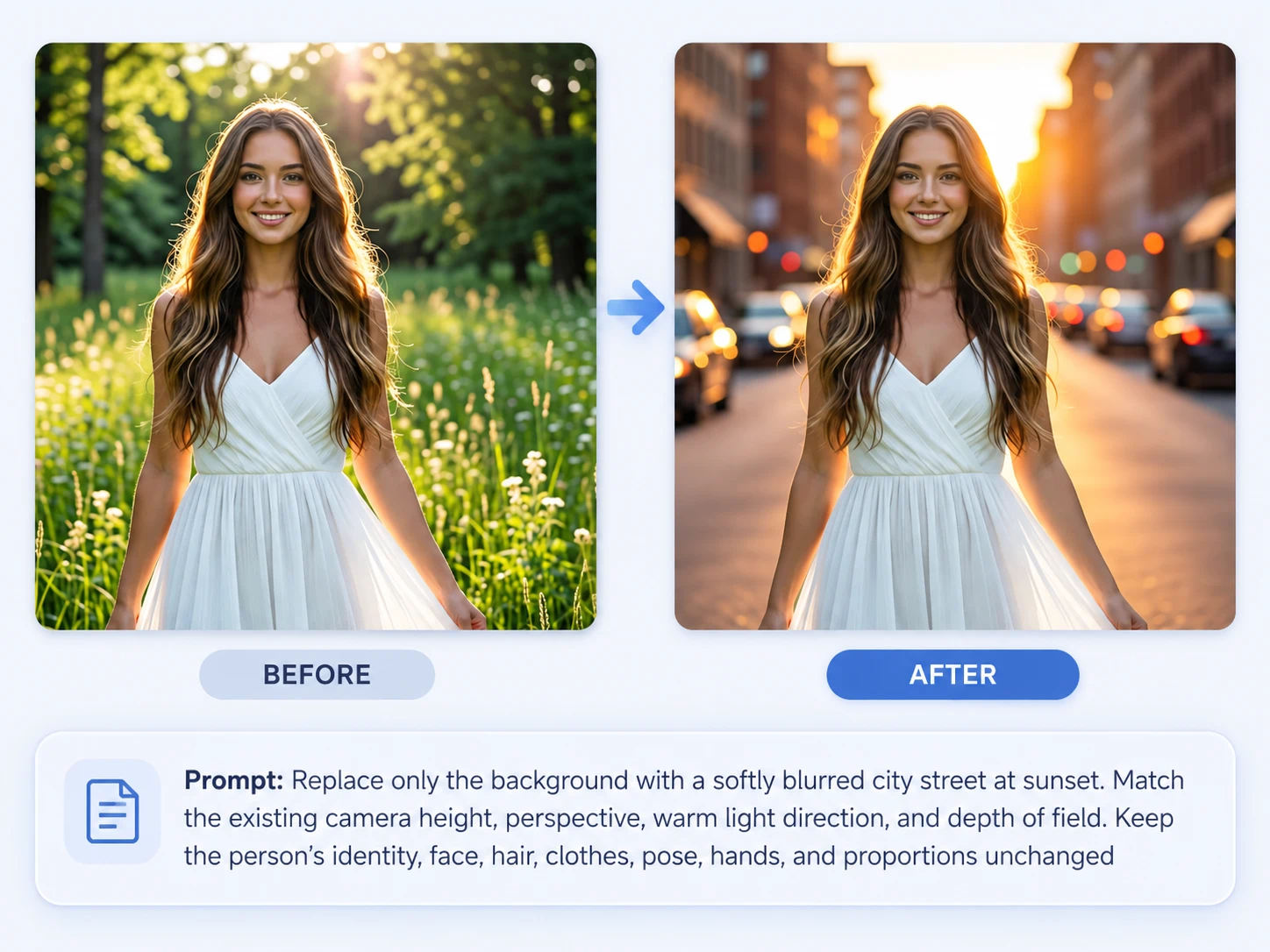
Example: “Replace only the background with a softly blurred city street at sunset. Match the existing camera height, perspective, warm light direction, and depth of field. Keep the person’s identity, face, hair, clothes, pose, hands, and proportions unchanged.”
10 AI Background Prompts
| Use case | Prompt |
|---|---|
| Professional headshot | Replace only the background with a clean warm-gray studio backdrop. Preserve the person’s exact identity, facial features, hairstyle, clothing, pose, and framing. Match the original light direction and add a soft natural shadow. |
| LinkedIn portrait | Replace the background with a bright, softly blurred modern office. Keep the person completely unchanged, including the face, hair, glasses, outfit, body proportions, and expression. Use realistic daylight and professional color balance. |
| Outdoor portrait | Replace the background with a green urban park during late afternoon. Preserve the person’s identity, pose, clothing, and camera angle. Match the warm light, realistic depth, and natural ground shadow. |
| Product on white | Replace only the background with a pure white studio setting. Preserve the product’s exact shape, proportions, colors, materials, label, logo placement, and camera angle. Add a subtle realistic contact shadow. |
| Luxury product scene | Place the product on a dark stone surface with a deep neutral background and soft directional studio lighting. Keep every product detail unchanged and create realistic shadows and reflections. |
| Skincare lifestyle image | Replace the background with a bright bathroom counter featuring pale stone, soft daylight, and minimal neutral decor. Preserve the product packaging, cap, label, colors, proportions, and orientation exactly. |
| Travel portrait | Replace the crowded background with a quiet European street while keeping the person, pose, clothing, and framing unchanged. Match the original daylight, perspective, and depth of field. |
| Beach background | Replace the background with a clean tropical beach, calm blue water, pale sand, and soft morning light. Preserve the subject’s face, body, clothing, pose, and camera position. Add believable shadows and atmospheric depth. |
| Social media backdrop | Replace the background with a bold purple-to-blue gradient and subtle abstract shapes. Keep the subject sharp and unchanged. Maintain clean edges around the hair and clothing, with balanced studio lighting. |
| Festive background | Replace the background with a warm holiday interior featuring subtle lights, greenery, and soft golden bokeh. Preserve the people’s identities, expressions, clothing, poses, hands, and original composition. |
Match the New Background to the Subject
A realistic background needs to agree with the original photo.
| Element | What to match |
|---|---|
| Light direction | Shadows should fall in the same direction |
| Color temperature | Warm subjects need warm or neutral surroundings |
| Camera height | The background horizon should fit the original viewpoint |
| Perspective | Floors, walls, and furniture should use compatible angles |
| Depth of field | A blurred subject should not have a perfectly sharp background |
| Ground contact | Standing people and products need realistic contact shadows |
| Reflections | Glass, metal, and glossy surfaces should reflect the new setting |
Keep the Subject Unchanged
Include a preservation sentence whenever accuracy matters:
“Do not change the subject’s identity, face, hairstyle, expression, pose, hands, clothing, proportions, product design, text, or logo.”
For products, compare the edited result with the original before publishing. AI may alter labels, packaging text, buttons, patterns, or small components.
Use a Reference Background
If you have an example of the desired environment, upload it as a second image.
Use a prompt such as:“Use the first image as the source of the person and the second image only as the background reference. Preserve the person’s identity, clothing, pose, scale, and camera angle. Recreate the background’s colors, materials, lighting, and atmosphere without copying any people from it.”
See how to edit images with a reference image for more examples.
Common Background Replacement Problems
| Problem | Fix |
|---|---|
| Subject looks pasted onto the scene | Match lighting, perspective, color temperature, and contact shadows |
| Hair edges look rough | Request clean natural edges with preserved individual hair strands |
| Face or product changes | State that only the background may be edited |
| Subject scale looks incorrect | Preserve the original subject size and camera distance |
| New background is too busy | Reduce props and request a simpler composition |
| Product floats above the surface | Add a realistic contact shadow and surface reflection |
| Background angle feels wrong | Match the original camera height, lens perspective, and horizon |
Create More Visual Variations
Once the background is working, reuse the same subject across several environments for advertisements, profile images, product campaigns, or social content. You can also turn the photo into a cartoon with AI or change its camera angle to create additional versions.
Upload your image to XPT, choose one prompt above, and replace the background while keeping the original subject recognizable.