You do not need to draw every line manually to create a cartoon version of a photo. With a clear source image and a specific prompt, AI can transform portraits, pets, products, buildings, and travel photos into different illustration styles.
The key is to describe both the cartoon style you want and the original details that must remain recognizable.
What Photos Work Best?
Choose a photo with:
- A clearly visible subject
- Sharp facial or product details
- Balanced lighting
- Limited motion blur
- A simple or uncluttered background
- Enough space around the subject
For portraits, use a photo where the face is not covered by hair, hands, or strong shadows. For products, make sure the shape, colors, and important components are visible.
How to Turn a Photo Into a Cartoon
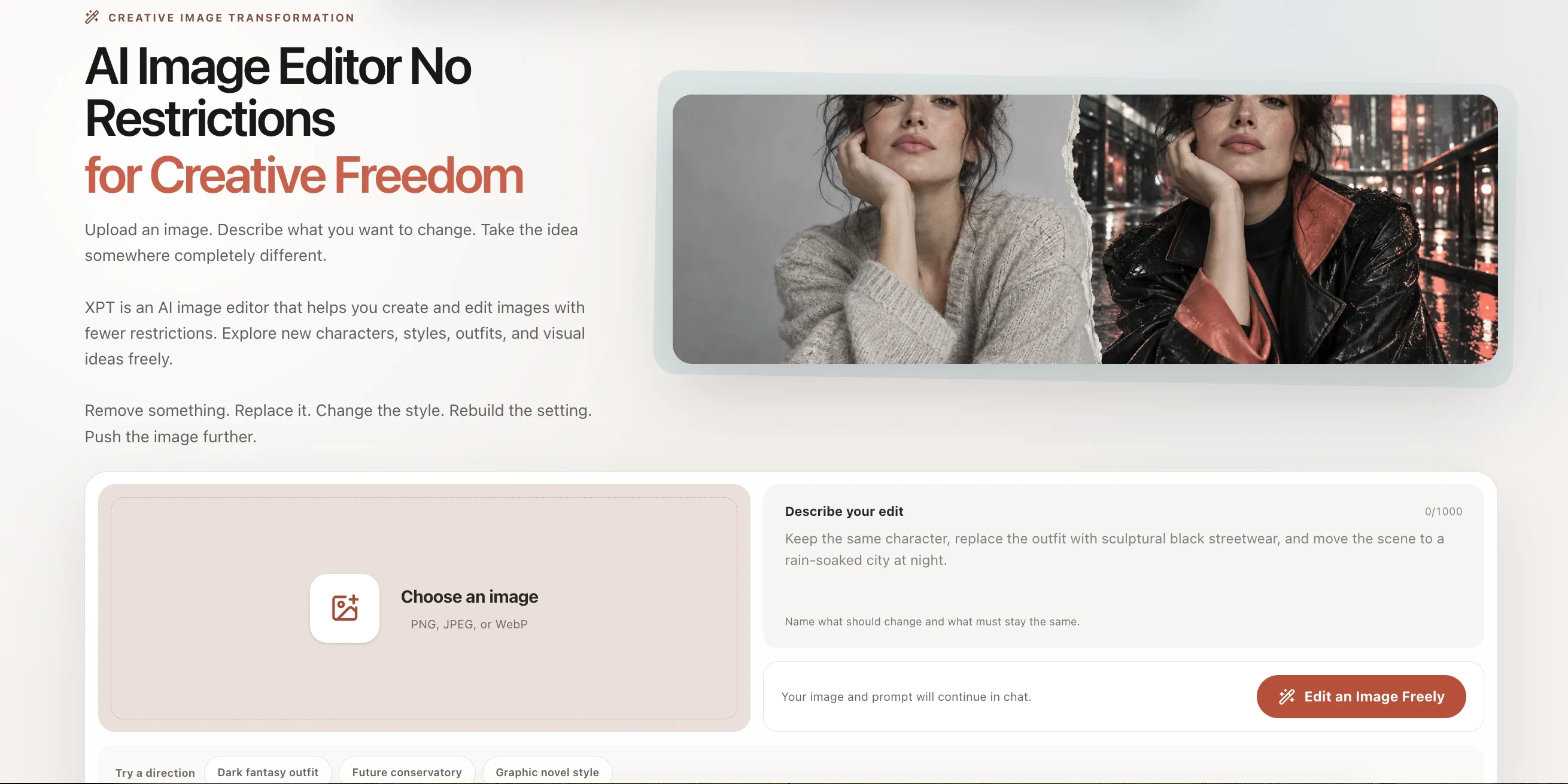
1. Upload the Original Photo
Open the AI Image Editor and upload your image.
2. Choose a Cartoon Style
“Cartoon” can describe many different visual directions. Be more specific by choosing a style such as:
- Clean 2D animation
- Comic book illustration
- Anime portrait
- Flat vector art
- Children’s storybook
- Retro cartoon
- Watercolor illustration
- 3D animated character
- Chibi character
- Hand-drawn ink illustration
Avoid naming a living artist. Describe the visible characteristics of the style instead.
3. Write the Transformation Prompt
A useful prompt identifies:
- The subject
- The cartoon style
- Features that must stay recognizable
- Line and shading style
- Color palette
- Background treatment
- Image composition
For example: “Transform this portrait into a clean 2D cartoon illustration with smooth outlines, soft cel shading, and a warm color palette. Preserve the person’s face shape, hairstyle, skin tone, expression, glasses, clothing, pose, and framing.”
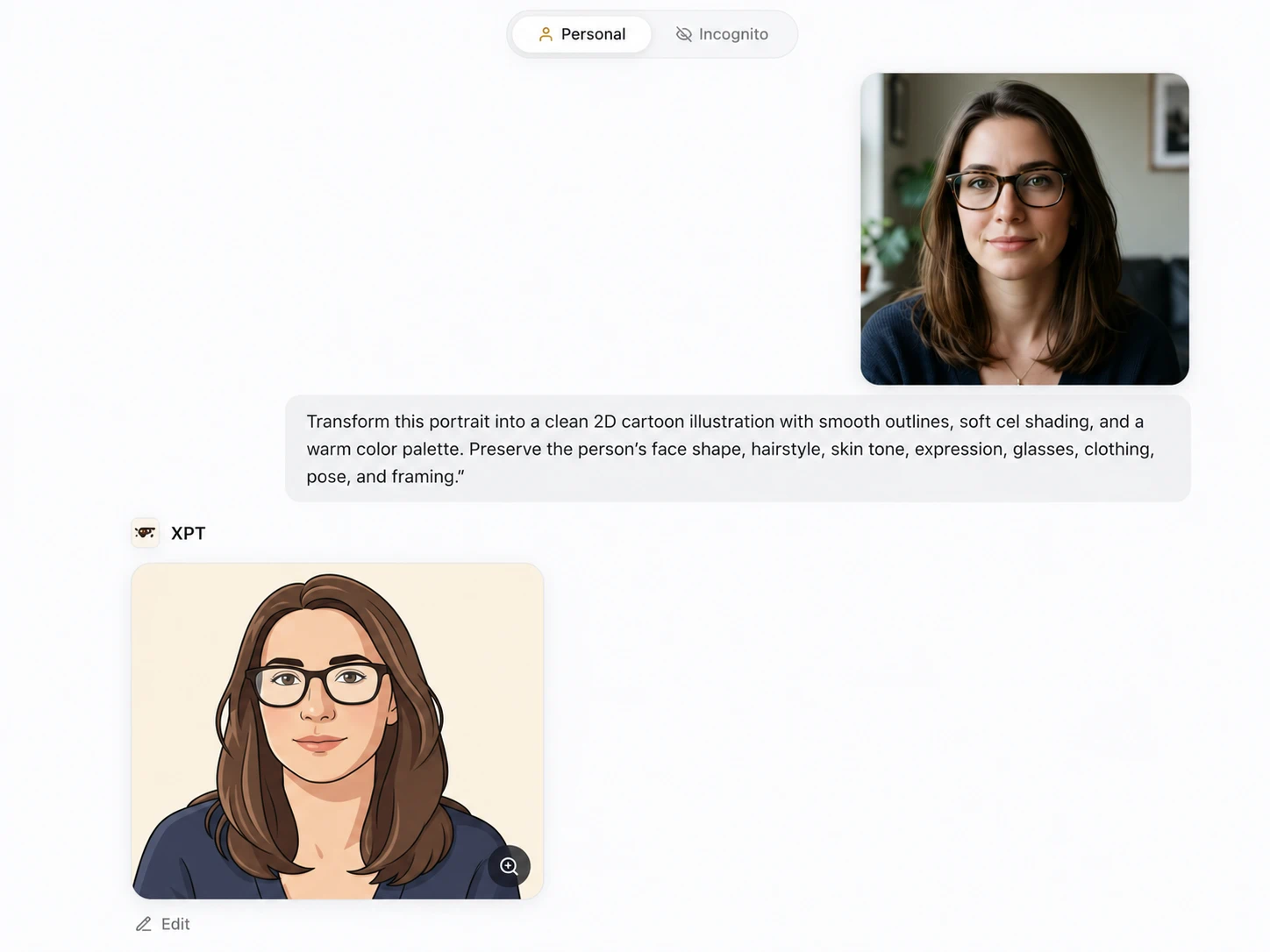
4. Review and Refine
Compare the generated cartoon with the original photo. Check the face, hairstyle, clothing, pose, product details, and background.
If one part is incorrect, revise only that area: “Keep the current cartoon style and composition. Restore the original round glasses, dark brown eye color, and blue jacket without changing the face or hairstyle.”
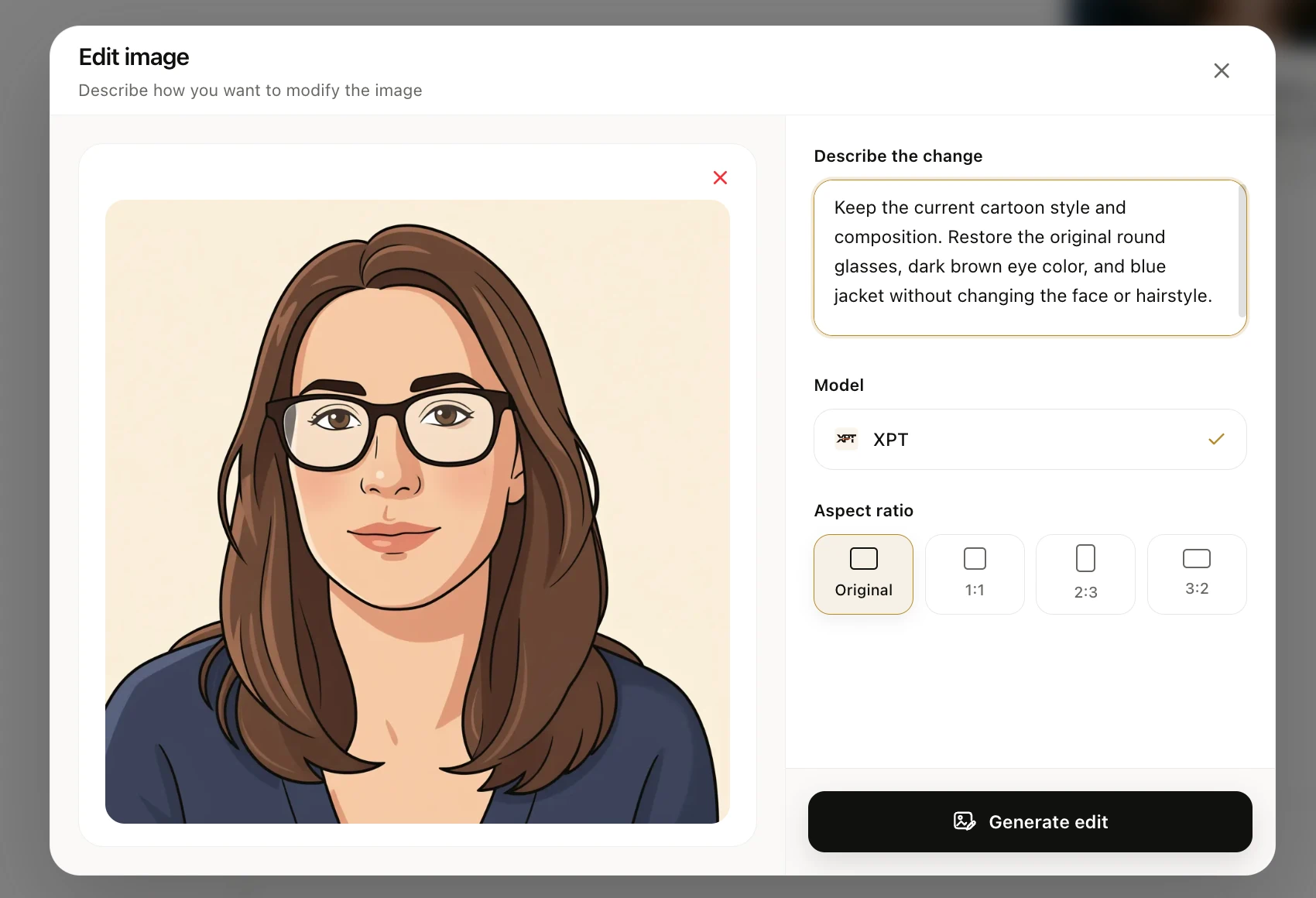
A Simple Cartoon Prompt Formula
Use this structure:
Transform + subject + style + preserved details + colors and shading + background + composition
Example:
“Transform this dog photo into a cheerful children’s book illustration. Preserve the dog’s breed, white chest marking, brown ears, sitting pose, and red collar. Use soft outlines, textured colors, gentle shading, and a simple garden background.”
10 AI Prompts to Turn Photos Into Cartoons
| Style | Prompt |
|---|---|
| Clean 2D portrait | Transform this portrait into a polished 2D cartoon illustration with clean outlines and soft cel shading. Preserve the person’s facial structure, hairstyle, skin tone, expression, clothing, pose, and original framing. |
| Comic book | Convert this photo into a bold comic book illustration with expressive ink lines, controlled halftone texture, dramatic shadows, and vivid colors. Keep the subject recognizable and preserve the original pose and composition. |
| Anime portrait | Transform this portrait into a detailed anime-style illustration. Preserve the person’s face shape, hairstyle, eye color, clothing, expression, and accessories. Use refined line art, balanced proportions, and soft cinematic lighting. |
| Flat vector avatar | Turn this head-and-shoulders photo into a clean flat vector avatar. Preserve the subject’s hairstyle, glasses, facial hair, skin tone, and clothing colors. Use simple geometric shapes, crisp edges, and a plain background. |
| Storybook illustration | Recreate this photo as a warm children’s storybook illustration. Preserve the main subject, pose, clothing, and important environmental details. Use hand-drawn lines, textured colors, and gentle natural lighting. |
| Retro cartoon | Transform this image into a retro-inspired cartoon with thick outlines, simplified shapes, limited colors, and subtle print texture. Keep the subject’s identity, pose, outfit, and recognizable features. |
| 3D cartoon character | Convert the person in this photo into a friendly 3D cartoon character. Preserve the face shape, hairstyle, skin tone, expression, clothing, and pose. Use smooth materials, soft lighting, and balanced proportions. |
| Chibi character | Turn the person in this photo into a cute chibi character with a large head and small body. Preserve the hairstyle, facial features, outfit, accessories, colors, and expression. Use clean outlines and soft pastel shading. |
| Cartoon pet | Transform this pet photo into a charming cartoon illustration. Preserve the animal’s breed, fur colors, markings, ear shape, eye color, collar, and pose. Use expressive lines, soft shading, and a simple background. |
| Cartoon travel scene | Convert this travel photo into a colorful illustrated postcard. Preserve the people, landmark, overall composition, and recognizable architectural details. Use clean line art, bright colors, and subtle paper texture. |
How to Preserve the Subject’s Identity
Stylization can make a portrait look generic. Include the features that make the person recognizable:
- Face shape
- Hairstyle and hair color
- Eye color
- Skin tone
- Glasses
- Facial hair
- Freckles or other visible features
- Clothing and accessories
- Original expression
For multiple cartoon scenes featuring the same person or character, follow the workflow in how to create consistent AI characters across images.
Common Problems and Fixes
| Problem | Prompt adjustment |
|---|---|
| The face no longer looks familiar | List the facial features, hairstyle, expression, and accessories that must remain recognizable |
| The cartoon looks too generic | Specify line weight, shading, texture, colors, and visual mood |
| Clothing details disappear | Describe the outfit, pattern, buttons, logo placement, and colors |
| The pose changes | Ask to preserve the exact pose, hand position, and framing |
| The background becomes distracting | Request a simplified background with fewer objects |
| The result looks too realistic | Ask for illustrated lines, simplified shapes, and clearly stylized shading |
| The style is too extreme | Request moderate stylization with realistic facial proportions |
Use a Reference Image for a Specific Look
If you already have an example of the desired cartoon style, upload it together with the original photo. Clearly identify which image supplies the subject and which supplies the visual style.
For example: “Use the first image as the source of the person’s identity, pose, clothing, and composition. Use the second image only as a reference for the line style, color palette, and shading. Do not copy its character or background.”
See how to edit images with a reference image for a more detailed workflow.
Create Your Cartoon Version
A precise style description produces more controlled results than a general request to “make this a cartoon.” Define the line work, colors, shading, composition, and details that must remain recognizable. Upload your photo to XPT, choose a visual direction, and use one of the prompts above to create your first cartoon version.