AI can help you explore icon, illustration, pattern, and logo directions quickly. But an AI-generated image is not automatically a true SVG. A usable SVG needs editable paths, clean shapes, and a structure that still works when scaled.
This workflow helps you create a clear visual concept with AI, then turn it into a practical vector asset.
What Can You Create as an SVG?
| Use case | What AI helps you explore |
|---|---|
| Logo concepts | Symbols, monograms, and graphic directions |
| Website icons | Simple interface icons and visual systems |
| Product illustrations | Decorative product graphics and spot illustrations |
| Social assets | Badges, stickers, and campaign graphics |
| Patterns | Repeatable geometric or decorative motifs |
| Print designs | Large-format graphics that need to stay sharp |
Create an SVG Concept With AI
Step 1: Define a simple graphic system
Start with one central subject, a limited color palette, and a clear visual style. This gives you a result that is easier to redraw or vectorize.
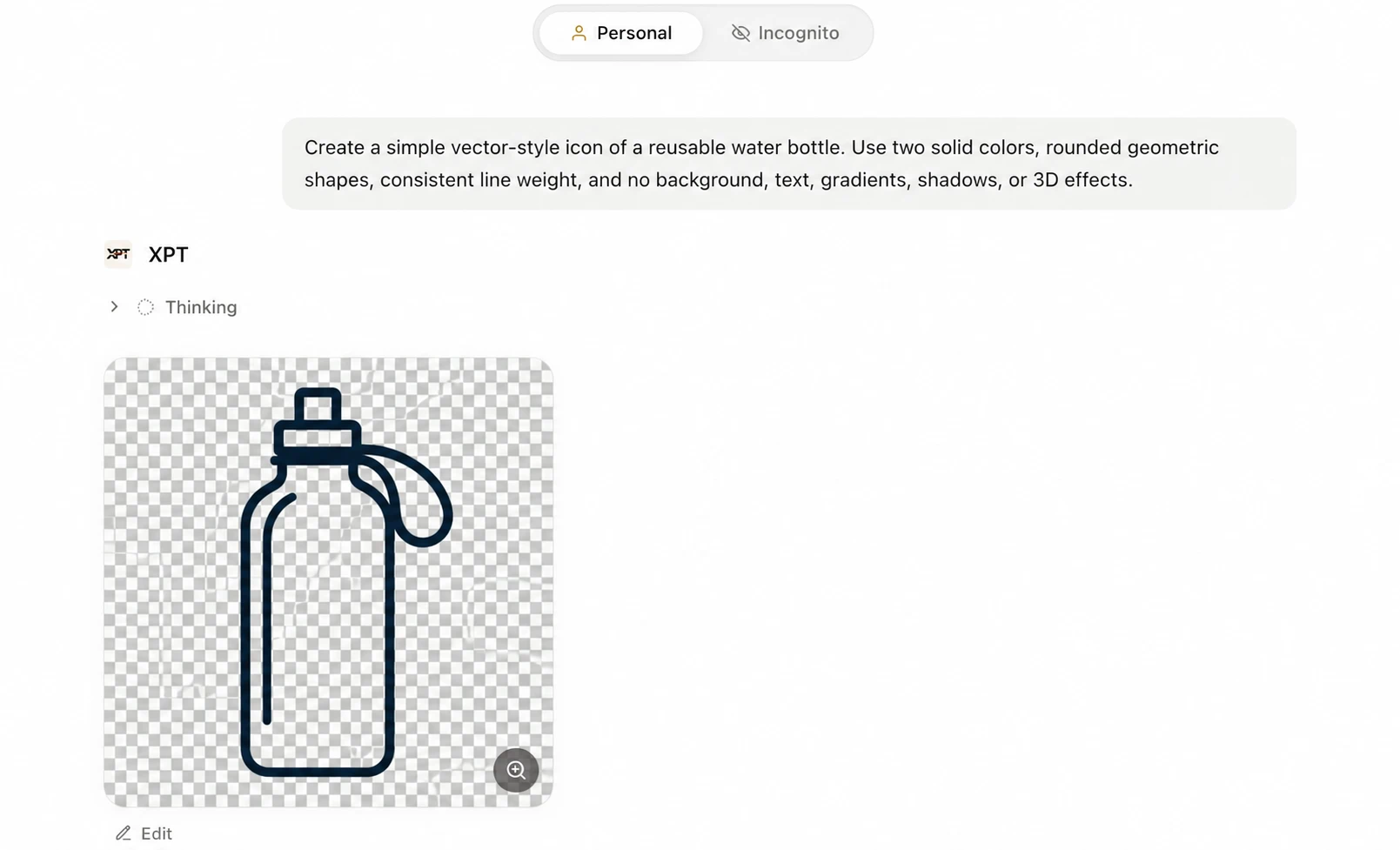
“Create a simple vector-style icon of a reusable water bottle. Use two solid colors, rounded geometric shapes, consistent line weight, and no background, text, gradients, shadows, or 3D effects.”
Step 2: Generate a visual direction
Use an image generator or editor to test the composition, color balance, and graphic style. For illustration-led concepts, try the AI Concept Art Generator. For editing an existing reference image into a simpler graphic direction, use the AI Image Editor.
Generate several variations, then select one with clear edges and a balanced layout. A simple image usually produces a cleaner vector result.
Step 3: Convert and verify the SVG
After choosing a concept, convert it with a vectorization tool or recreate it in vector software. Open the file in an SVG-compatible editor and check that:
- Shapes remain sharp when enlarged.
- Key elements are editable paths rather than a single embedded image.
- Colors, strokes, and spacing are consistent.
- The file does not contain unnecessary background objects.
After the SVG is verified, you can reuse it for brand symbols and favicons, website or app illustrations, campaign graphics, packaging artwork, and print assets. For logo-specific applications, see How to Create a Logo With AI. For larger illustration directions, explore the AI Concept Art Generator, and use these AI Logo Prompts when you need more brand-ready visual ideas.
10 AI Prompts for SVG Image Ideas
| # | Prompt |
|---|---|
| 1 | Create a minimal flat vector-style icon of a paper airplane, rounded corners, navy and sky-blue palette, no text, white background. |
| 2 | Design a geometric leaf symbol for a sustainable skincare brand, simple shapes, dark green and cream, no lettering. |
| 3 | Create a set of five matching outline icons for travel: suitcase, passport, camera, airplane, and map pin. Clean black strokes, white background. |
| 4 | Design a playful flat illustration of a sleepy orange cat on a book stack, bold shapes, limited colors, no text. |
| 5 | Create a seamless repeating pattern of lemons, leaves, and small flowers, flat vector style, yellow, green, and off-white. |
| 6 | Design a modern abstract badge for a fitness challenge, circular composition, energetic red and black palette, no words. |
| 7 | Create a simple line-art illustration of a home office desk with a laptop, plant, lamp, and notebook. One-color vector style. |
| 8 | Design a clean ecommerce product badge with a gift box and sparkle symbol, flat style, purple and white, no text. |
| 9 | Create a bold geometric mountain illustration for an outdoor brand, three flat colors, sharp edges, no gradients. |
| 10 | Design a friendly robot mascot icon with a square head, simple face, rounded geometry, teal and dark blue colors, transparent-style background. |
Tips for Cleaner Vector Results
- Use no more than two or three main colors.
- Ask for flat colors instead of photorealistic lighting.
- Keep the subject centered and separate from the background.
- Generate text-free images, then add typography in a design tool.
- Choose a version with large, distinct shapes before vectorizing it.
If you need a logo, separate the symbol from the wordmark. This makes both parts easier to edit and use across different sizes. You can find logo-focused direction in How to Create a Logo With AI.
Common Problems
The SVG still looks blurry
The file may contain a raster image inside an SVG container. Check whether you can select individual paths and shapes. If not, vectorize or redraw the image.
The converted image has too many points
Simplify the source image before conversion. Remove texture, small decorations, and complex shadows, then vectorize again.
The design changes too much after conversion
Use the AI output as a visual reference, then manually rebuild the important shapes. This gives you more control over proportions and brand consistency.
The prompt produces text or unwanted labels
Add “no text, no letters, no watermark” to the prompt. Build type separately after the graphic is finished.
Final Thoughts
AI is useful for finding a strong SVG direction quickly. Keep the initial concept simple, verify that the final file contains editable vector paths, and adapt the asset for the channel where it will be used.