Amazon product images have two jobs: attract attention and show customers what they will actually receive. AI can help clean a background, improve the composition, create lifestyle scenes, and produce different visual directions from an existing product photo. However, it can also change a label, reshape the product, add an accessory, or invent a feature.
That makes the workflow different from ordinary AI image generation. The product itself must remain accurate. Start with clear photos of the real item. Use AI to build the presentation around those photos, then compare every generated result against the physical product before uploading it.
How to Create Amazon Product Images With AI
Plan the image’s role before writing the prompt. The main image usually needs a simple, compliant presentation of the actual product. Secondary images can explain details, show different angles, demonstrate scale, or place the product in a relevant environment.
Do not try to create the entire image set with one broad prompt. Build and verify each image separately.
Step 1: Upload an Accurate Product Photo and Describe the Image
Open XPT and upload a sharp photo of the real product.
Use the highest-quality source available. Make sure the product’s shape, packaging, materials, colors, label, and included components are visible.
For a clean white-background image, try:“Use this product photo as the base image. Place the exact product on a pure white background with clean studio lighting and a natural contact shadow. Preserve the product’s shape, proportions, color, material, texture, packaging, label, logo, printed text, components, and included accessories exactly as shown. Remove only the original background and unrelated objects. Do not redesign, simplify, add, or remove any product feature.”
Amazon says the main image should accurately represent the item and generally show only the product for sale on a pure white background. Text, watermarks, inset images, mockups, and confusing props are not permitted in the main image. Category-specific rules may add further requirements.
For a lifestyle image, describe both the scene and the product-preservation requirements:“Use the uploaded real product photo of the fan as the main reference. Create an Amazon-style home lifestyle product image in a clean, bright, modern interior, such as a bedroom, living room, or home office. Keep the fan’s design exactly consistent with the uploaded product, including its shape, proportions, structure, base, grille, controls, and overall appearance.”
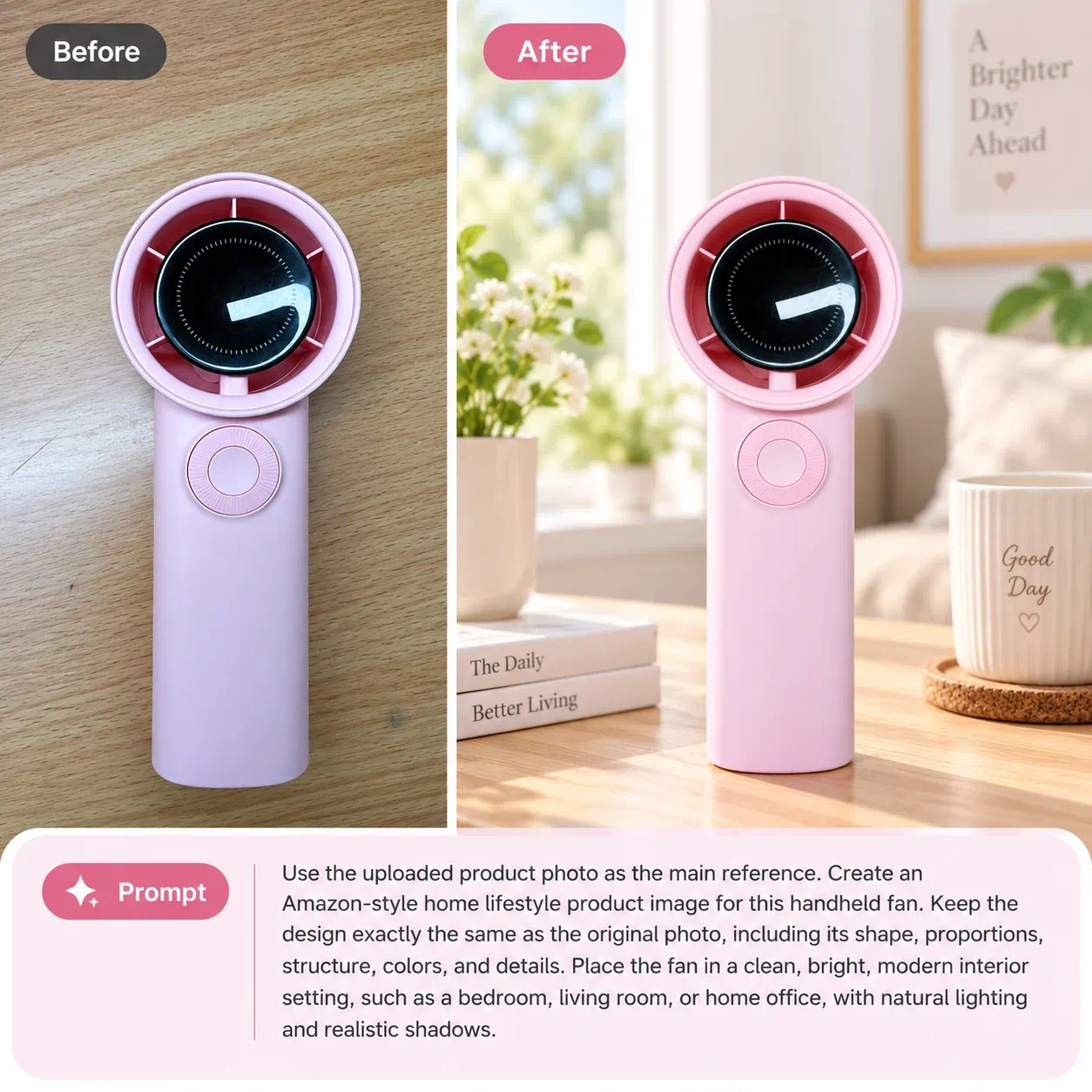
For guidance on using several images, see how to edit images with a reference image.
Step 2: Check the Product Against the Original
Do not approve the image because it looks polished. Compare it directly with your product and source photos.
Check:
- Overall shape and proportions.
- Product color and finish.
- Logo position, size, and spelling.
- Label text and packaging.
- Buttons, ports, seams, handles, lids, and closures.
- The number of included pieces.
- Accessories shown in the image.
- Claims presented through text or visual effects.
- Scale relative to hands, furniture, or other objects.
- Shadows, reflections, and contact with the surface.
AI-generated text is especially unreliable. If a label or package contains important text, preserve it from the original photograph or add verified copy later with a design tool.
If the generated image adds a feature the product does not have, discard or correct it. A visually appealing image should never imply that an accessory, material, function, or result is included when it is not.
Amazon’s current seller guidance stresses that images should be clear, realistic, and accurate. It also recommends multiple views so shoppers can examine the product. Review the latest Amazon product photography guidance and the rules for your specific category before uploading final assets.
Step 3: Refine One Detail at a Time
If the product is accurate but the scene needs improvement, limit the follow-up prompt to the background, lighting, or composition.
For example: “Keep the original image unchanged. Add two identical fans based on the original product: one with a white body and one with a black body. Keep the original fan color unchanged. Preserve the exact design, proportions, lighting, shadows, background, and all other elements. Only add the two color variants.”
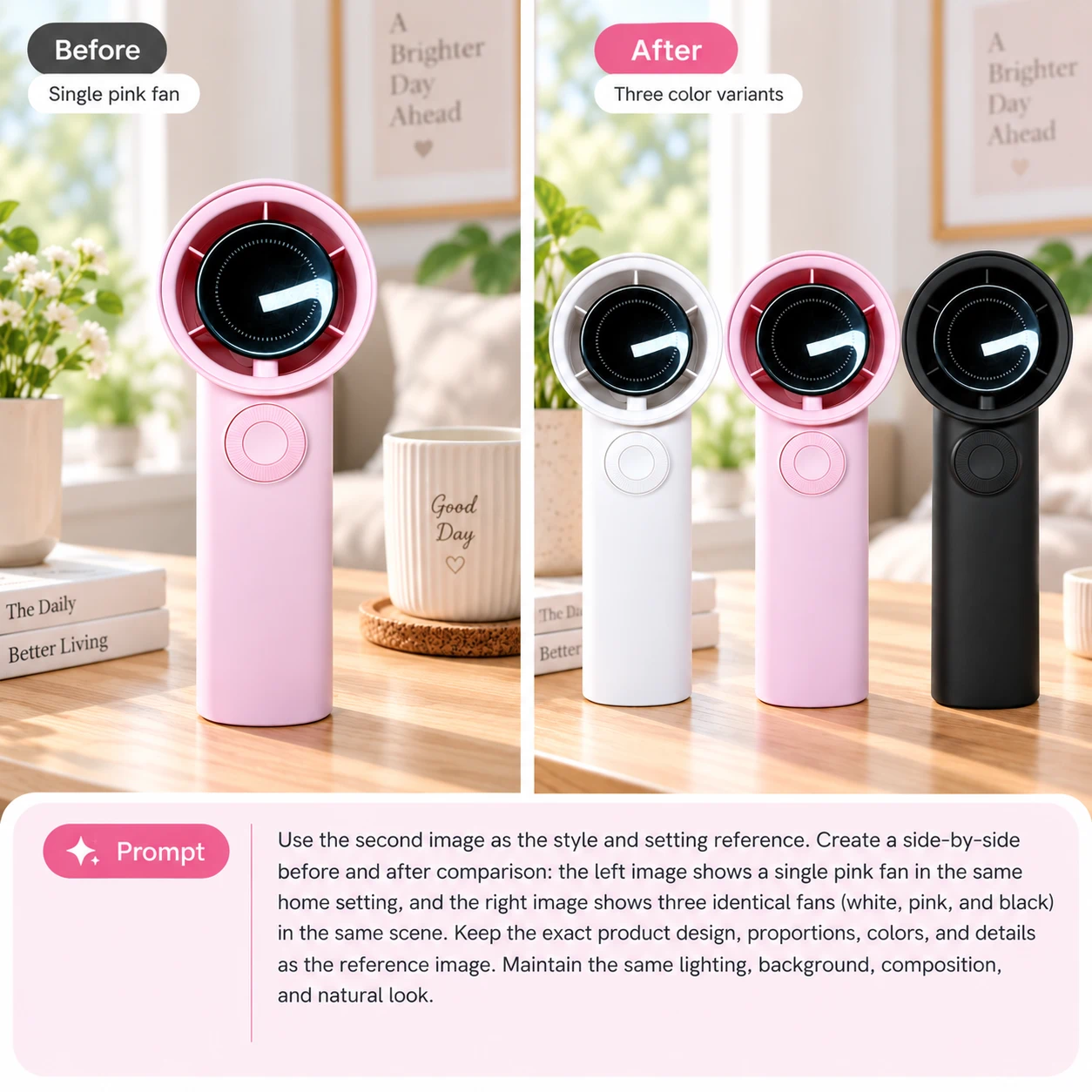
For complex products, create separate images for individual goals:
- Main white-background image.
- Front, back, side, and detail views.
- Lifestyle context.
- Size or scale explanation.
- Key feature visual.
- Included components or packaging.
Main Images and Secondary Images Serve Different Purposes
Amazon’s official guidance says each product needs at least one image and recommends supplying several. It currently lists supported images as 500–10,000 pixels on the longest side and prefers images over 1,000 pixels to support zoom. Amazon also notes that requirements can vary by category, so Seller Central and the relevant category style guide remain the final checks.
| Image Type | Purpose | AI’s Appropriate Role |
|---|---|---|
| Main image | Show the exact item customers can buy | Clean the background, balance lighting, and prepare a simple presentation without changing the product |
| Alternate angle | Show shape and construction | Improve the surrounding background while preserving the photographed angle |
| Detail image | Show material, controls, stitching, texture, or components | Clean distractions and improve clarity without manufacturing nonexistent detail |
| Lifestyle image | Show the product in a realistic context | Generate an appropriate environment around an accurate product reference |
| Scale image | Help customers understand size | Create a realistic context, followed by careful review of physical proportions |
| Feature image | Explain one verified function or benefit | Create the visual setting; add exact verified text later in a design editor |
| Package-content image | Show what the buyer receives | Arrange real photographed components clearly without adding extras |
| Comparison image | Explain differences among models or variants | Build the layout around verified products, specifications, and copy |
What Amazon Product Images Can You Create With AI?
Clean White-Background Images
You can remove a cluttered background and place the photographed product in a cleaner studio presentation. For a main image, keep the product alone unless current Amazon and category rules explicitly permit another treatment. Do not use a generated product mockup as a substitute for an accurate photograph of the real item.
Lifestyle Product Images
A lifestyle image helps shoppers imagine where or how the product may be used. You might place cookware in a kitchen, a backpack beside travel gear, or a desk accessory in a home office. The scene should support the product rather than hide it or suggest unsupported features.
Product Images From Different Visual Angles
If you have real photos from several angles, AI can help place them into a consistent visual system. A single front image usually does not provide enough evidence for AI to recreate an accurate back, underside, connector panel, or interior. Use actual reference photos for every side that matters.
Feature-Focused Images
Secondary images can draw attention to a material, closure, compartment, texture, or control. Keep the visual claim tied to a real feature. Add final labels, measurements, and explanatory text using verified information after generating the underlying visual.
Size and Scale Images
A lifestyle context can make dimensions easier to understand, but AI may render hands, furniture, and surrounding objects at an inaccurate scale. Confirm the product’s dimensions and review the visual proportions before publishing. When accuracy matters, use measured diagrams or real photography.
Packaging and Included-Item Images
Show the exact box, manuals, cables, attachments, or accessories customers receive. Generated extras can create false expectations. Compare the result against the actual package contents and remove anything that is not included.
Seasonal Variations
You can place an accurate product into holiday, summer, outdoor, or gift-oriented environments for secondary images and advertising assets. Keep seasonal decorations outside the product itself and make sure they do not cover important features.
Consistent Images Across Variants
A shared background, camera height, and lighting direction can make a group of color or size variants feel consistent. Edit each real variant from its own reference photo. Changing only the color of one image may produce a shade or finish that differs from the item customers receive.
A Practical Amazon Image Set
A useful listing image set answers a sequence of customer questions.
| Image Position | Customer Question | Suggested Content |
|---|---|---|
| 1 | What exactly is this product? | Clear main image of the item for sale |
| 2 | What are its most important details? | Alternate angle or clear feature overview |
| 3 | How is it used? | Realistic lifestyle scene |
| 4 | How large is it? | Verified dimensions or scale reference |
| 5 | What is it made from? | Close-up of material or construction |
| 6 | What comes in the package? | Accurate package-content image |
| 7 | Which version should I choose? | Verified comparison or variant guide |
The ideal order depends on the product. A fashion item may need fit and fabric views early, while an electronic device may need ports, controls, and included components.
Common AI Product Image Mistakes
| Problem | Why It Matters | How to Fix It |
|---|---|---|
| The logo or label changes | Customers may receive a product that looks different | Return to the source photo and preserve the original label area |
| AI invents an accessory | The image may imply that an extra item is included | Remove the accessory and show only verified package contents |
| Product proportions change | Size and usability become misleading | Match the generated result against measured dimensions and source photos |
| The color looks different | Customers may choose the wrong variant | Compare with the physical item under neutral lighting |
| Main image includes props or text | It may conflict with Amazon’s image rules | Use a pure white background and show only the item for sale |
| Lifestyle scene hides the product | Shoppers cannot evaluate important details | Simplify the environment and bring visual focus back to the item |
| Generated text is misspelled | Labels and claims appear unprofessional or incorrect | Add verified copy manually after generating the base visual |
| The scene implies an unsupported use | The image may misrepresent performance or suitability | Use a realistic context based on the product’s verified purpose |
| One source image is used to invent unseen sides | Hidden details are likely to be fabricated | Upload real photographs of the back, sides, underside, and packaging |
10 AI Prompts for Amazon Product Images
| Use Case | AI Prompt |
|---|---|
| White-Background Product Image | Place this exact product on a pure white background with clean studio lighting and a natural contact shadow. Preserve its exact shape, dimensions, color, material, logo, label, packaging, components, and included accessories. Remove only the original background. |
| Clean Studio Secondary Image | Place the exact product on a light-gray studio surface with soft commercial lighting. Preserve every product detail, including its color, texture, shape, logo, label, controls, seams, and proportions. Do not add props. |
| Three-Quarter Product View | Use the uploaded front and side product photos as references. Create a three-quarter presentation that remains consistent with both images. Preserve all visible design details, dimensions, branding, materials, and components. |
| Home Lifestyle Image | Place this exact product in a bright, realistic home setting where it would naturally be used. Keep the product fully visible and preserve its shape, size, color, material, branding, and features. Do not add accessories that are not included. |
| Kitchen Lifestyle Image | Place this exact product on a clean modern kitchen counter in a realistic use context. Preserve the product’s complete design, label, color, texture, proportions, and components. Keep the scene uncluttered. |
| Outdoor Lifestyle Image | Place this exact product in a natural outdoor setting appropriate to its verified use. Preserve every product feature and keep the product clearly visible. Use realistic scale, perspective, shadows, and lighting. |
| Material Close-Up | Create a close-up composition emphasizing the product’s existing surface material and construction. Do not invent texture or modify the product. Preserve the exact color, stitching, seams, finish, branding, and design. |
| Package Contents | Arrange the photographed product, packaging, and included accessories in a clean top-down composition. Show only the supplied items. Preserve their exact appearance, quantity, scale, colors, labels, and logos. |
| Seasonal Secondary Image | Place this exact product in a subtle holiday gift setting. Keep the decorations in the background and preserve all product details, packaging, colors, labels, scale, and included components. Do not add text. |
| Clean Background Refinement | Keep the product completely unchanged. Remove distracting objects from the background and replace them with a simple continuation of the existing surface and wall. Preserve the product’s position, shadow, color, logo, label, and lighting. |
Create Better Images Without Changing the Product
AI can reduce the work involved in producing backgrounds, lifestyle variations, and consistent compositions. The final image still needs human review.
Begin with an accurate product photograph. Use XPT to change the setting or presentation, then compare every result with the real item and your approved product information.
Before publishing, review the image at full size, check your category requirements in Seller Central, and confirm that every visible product, feature, accessory, dimension, and claim is accurate.