To upscale an image with AI, start with the best source, choose the pixel dimensions you need, generate a larger version through an image workflow, and inspect the saved result. Check both size and detail. An image that looks sharper in a preview has not necessarily gained the pixels required for a larger page, crop, or print.
Upscaling estimates how detail should look at a larger size. That can make a small visual more usable, but it does not establish what missing information looked like in the original scene. The XPT tutorial below focuses on making a precise editing request and verifying the output, followed by size calculations and checks that help you avoid misleading results.
How to Prepare and Check an Upscaling Request in XPT
1. Open the Image-Editing Workflow
Use the AI Image Editor as the starting point for a source-based edit. Provide the image you want to improve through the available image-input workflow and keep an untouched original. Choose the original camera file or highest-quality export you have, rather than a screenshot of a thumbnail.
XPT's public Agent directory describes prompt-based image editing, but it does not establish a dedicated upscale factor or guaranteed export size. Do not assume a typed request for a particular resolution enforces that dimension. If your current interface cannot return a larger file, the request has not completed an upscale.
2. Define the Intended Placement
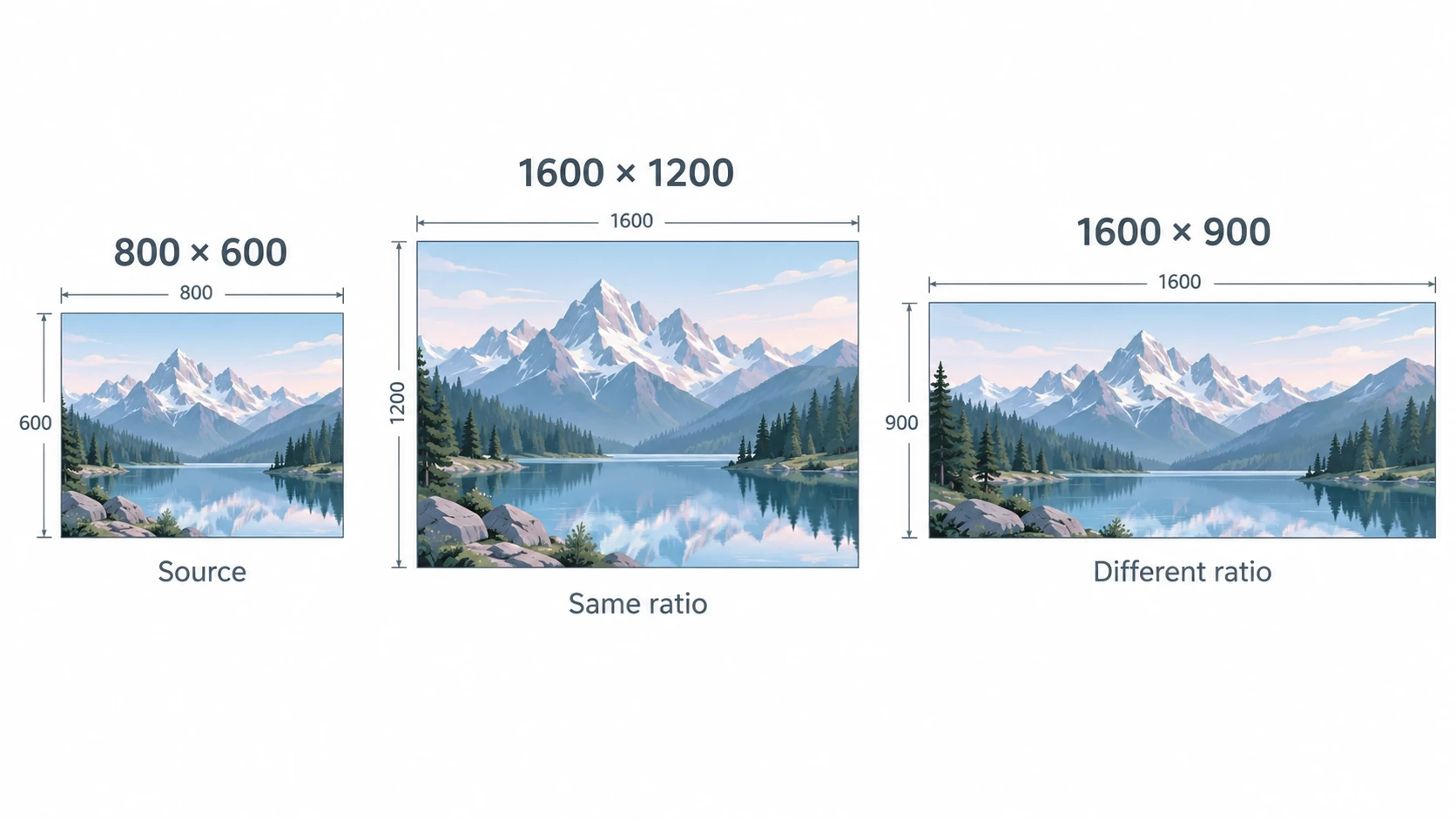
Write down the dimensions required by the layout. If the source is 800 by 600 pixels and the intended output is 1600 by 1200, you are asking to double both dimensions while preserving the aspect ratio. If the layout is much wider, resolve the crop or canvas problem separately.
Decide which details matter at that placement. A landscape hero may depend on convincing foliage and building edges; a product detail image may depend on a label that must not change. Give the request those priorities instead of asking for maximum detail everywhere.
3. Submit a Conservative Editing Brief
“Prepare this source image for a larger layout, targeting [width] by [height] pixels. Preserve the original aspect ratio, crop, subject proportions, and colors. Keep [faces, labels, patterns, or other critical details] faithful to the source. Use restrained texture reconstruction. Add no objects or invented lettering. Do not redesign the background. I will verify the saved dimensions and details.”
Generate a result and compare it with the source. If the composition, identity, or text drifts, return to the original and request less reconstruction. Continuing from a flawed result can make invented features harder to identify.
4. Verify the Saved Width and Height
Inspect the image file's properties in a supporting viewer or editor. Compare the saved dimensions with the target you wrote down. A visually larger preview or a label such as HD is not a substitute for checking actual pixels.
If the dimensions remain unchanged, classify the output as an edit or enhancement rather than an upscale. Use a workflow with explicit size controls when exact dimensions are required. For comparison, Adobe's documented Firefly upscaling workflow exposes scale choices and expected dimensions; those controls should not be assumed to exist in another tool.
5. Inspect Important Details Before Publishing
Compare a few important regions at full size, then view the image at its intended placement. Look for altered text, repeated texture, halos, or changed facial features. A result may look impressive when zoomed out but become less faithful in the details that matter most.
If the main problem is an unwanted object or an unsuitable setting, handle that as a separate task. The AI Image Replacer is a related workflow for deliberate detail changes; replacing something is different from preserving it during enlargement.
Choose a Size Instead of Chasing a Label
| Source size | Target size | What the request changes |
|---|---|---|
| 800 × 600 | 1600 × 1200 | Both dimensions double; the ratio stays the same. |
| 1200 × 800 | 2400 × 1600 | Both dimensions double; more output pixels are needed. |
| 800 × 600 | 1600 × 900 | The ratio changes; a crop, extension, or distortion decision is also needed. |
These are size calculations, not claims about XPT output limits. Choose the target from the final design. A wider canvas and a higher-resolution version solve different problems, so avoid combining them accidentally in one vague request.
For print, use the pixel count together with the physical size and the printer's requirements. Changing a resolution metadata value without adding pixels does not create new image information. When the result matters, inspect a proof rather than relying on how it looks on a small screen.
Upscaling Is Not the Same as Enhancement
A large image can still be dark or noisy. A small image can already have good color and clear detail. Decide whether the main limitation is the number of pixels or the visible quality before processing it.
If both are weak, compare restrained corrections and enlargement carefully. There is no useful universal instruction to apply every adjustment at maximum strength. The safest sequence is the one that preserves the source while meeting the final use, with an original available for another attempt.
Details That Need a Closer Look
Faces deserve special attention because plausible changes can alter identity. Text needs comparison with the source because a sharp-looking letter may be wrong. Patterns such as tiles, fabric, and window grids can become irregular when a model tries to add detail.
Inspect high-contrast edges for bright outlines and dark ringing. Review foliage or hair for repeated shapes and smearing. Keep the version that remains convincing at the intended display size, even if another version looks more dramatic in a tiny preview.
Common Upscaling Questions
Can AI recover an exact unreadable word? Do not assume it can. A legible-looking reconstruction may be invented. Use a reliable original when the text matters.
Should I choose the largest possible result? Only if the output serves the intended use and survives inspection. More pixels can increase file size without improving fidelity.
Does a larger file size prove a successful upscale? No. Compression and format affect storage size. Check width, height, and visual detail separately.
Enlarge for a Purpose
Start with a real placement requirement, protect the details you cannot afford to change, and verify the saved output. The useful result is not merely a sharper impression; it is an image that fits the job without misrepresenting the source.