A passerby can distract from an otherwise useful portrait, product shot, family photo, or event image. AI can remove people in the background and rebuild the area they covered, but the result depends on how clearly you identify who should disappear and what needs to stay.
This workflow is different from removing tourists from a landscape. The focus here is preserving the foreground subject, nearby objects, and the structure of an everyday scene.
Start With the Person You Want to Keep
Before you edit, identify:
- The main subject
- The people to remove
- Important background structure
- Nearby objects that may overlap
- Shadows and reflections
- Text, signs, or logos that should remain accurate
For a portrait, the main instruction is usually simple:
“Remove the people in the background. Keep the person in the foreground completely unchanged, including their face, hair, expression, clothing, hands, pose, proportions, lighting, and camera framing.”
If several people appear close together, remove them in smaller groups. This gives you more control over the reconstruction.
How to Remove Background People With AI
1. Upload the Original Photo
Open XPT and upload the original photo.
Use the clearest version available. The image should show enough background around the people you want to remove, so the AI can continue visible walls, paths, furniture, plants, or other details.
2. Describe Who Should Be Removed
State where the unwanted people are standing and who should remain.
For example:
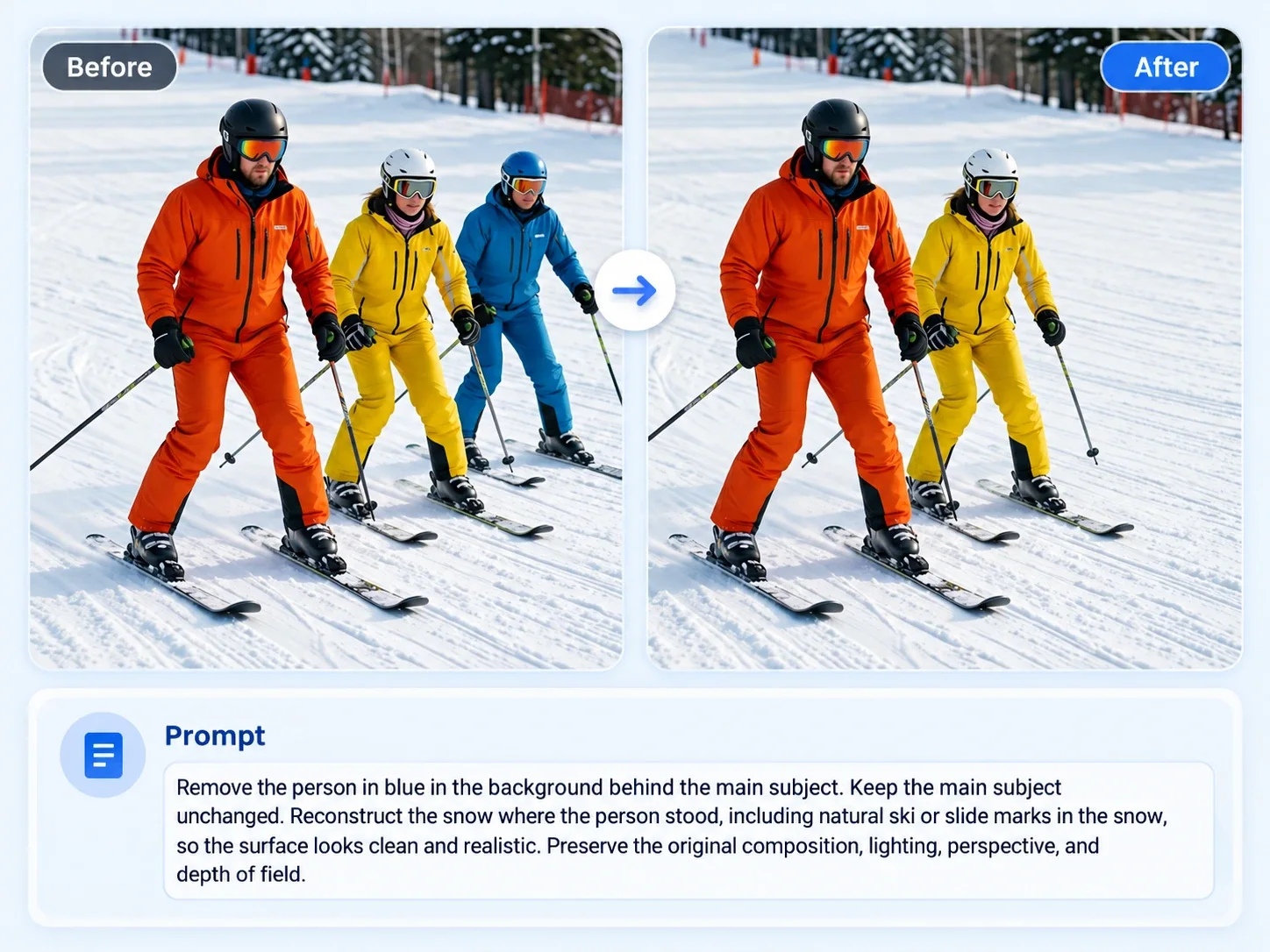
“Remove the person in blue in the background behind the main subject. Keep the main subject unchanged. Reconstruct the snow where the person stood, including natural ski or slide marks in the snow, so the surface looks clean and realistic. Preserve the original composition, lighting, perspective, and depth of field.
3. Inspect the Reconstructed Area
Check the area where each person stood.
Look for:
- Remaining hands, shoes, bags, or clothing
- Duplicated background objects
- Bent floor lines or walls
- Broken furniture edges
- Incorrect shadows
- Repeated textures
- Changed text or logos
- Altered parts of the main subject
Adobe’s Lightroom guidance for removing extra people also recommends reviewing detected people so the main subject is preserved.
10 Prompts for Removing Background People
| Use Case | Prompt |
|---|---|
| Portrait with passersby | Remove the two people walking behind the main subject. Keep the foreground person completely unchanged, including face, hair, expression, clothing, hands, pose, proportions, and lighting. Reconstruct the sidewalk, storefronts, and background naturally. |
| Event photo | Remove the guests standing behind the speaker near the back wall. Keep the speaker, podium, microphone, stage lighting, and audience in the foreground unchanged. Continue the wall and floor pattern naturally. |
| Product photo | Remove the person reflected in the background behind the product. Keep the product’s exact shape, label, logo, colors, reflections, shadow, and position unchanged. Rebuild the background surface realistically. |
| Outdoor portrait | Remove the person in the red coat near the tree on the right side of the image. Keep the main subject, trees, grass, path, shadows, and original camera angle unchanged. Fill the removed area with matching foliage and path texture. |
| Family photo | Remove the stranger standing behind the family on the far left. Preserve every family member’s face, clothing, hands, pose, and spacing. Reconstruct the wall and floor behind the removed person. |
| Restaurant photo | Remove the diners seated at the table in the background. Keep the food, drinks, tableware, foreground subject, lighting, and restaurant decor unchanged. Preserve realistic chair placement and background depth. |
| Office photo | Remove the person walking behind the desk. Keep the main subject, desk, computer, chair, documents, room layout, window light, and perspective unchanged. Reconstruct the office floor and wall naturally. |
| Beach photo | Remove the people standing near the shoreline in the background. Keep the main subject, waves, sand, shadows, horizon, and original framing unchanged. Continue the beach texture and water naturally. |
| Wedding portrait | Remove the guests visible behind the couple. Keep the couple’s faces, clothing, hands, pose, flowers, lighting, and background architecture unchanged. Reconstruct the wall, floor, and soft shadows behind the removed guests. |
| Follow-up cleanup | Keep the current image unchanged. Remove the remaining shoe and partial arm in the background near the left edge. Reconstruct the floor texture and shadow direction to match the surrounding area. |
When a Person Overlaps the Subject
Removing a person who overlaps the main subject is harder because part of the foreground may be hidden.
Use a narrow request:
“Remove only the person behind the main subject’s right shoulder. Preserve the main subject’s face, hair, shoulder, arm, clothing, and pose. Reconstruct only the hidden background area without changing the subject.”
If the background person covers an important part of the main subject, compare the result with another original photo before using it.
Background People vs. Background Replacement
Remove people when you want to keep the real setting and only clean up distractions.
Use a background replacement workflow when you want a new location, studio backdrop, or lifestyle setting. See How to Change Photo Background for that process.
For a crowded travel scene where the environment is the main subject, see How to Remove Tourists From Travel Photos With AI.
Common Problems and Fixes
| Problem | Prompt Adjustment |
|---|---|
| The main subject changes | Repeat the facial, clothing, pose, and body-preservation instructions |
| A person remains partly visible | Identify the leftover object and its location in a follow-up prompt |
| The floor or wall bends | Ask to continue the visible lines, texture, and perspective from nearby areas |
| A shadow remains | Request removal of the deleted person’s shadow while preserving the main subject’s shadow |
| Background objects duplicate | Ask to simplify the reconstructed area and retain only the visible original objects |
| Signs or text change | Preserve the original text or use another source photo for verification |
| The result looks empty | Remove only the most distracting person or group instead of clearing the full background |
Review Before You Share
Check the complete image, not only the edited area. The removal should not affect the main subject’s identity, the scene’s proportions, or the original light direction.
For portraits, zoom in on the face, hair, shoulders, hands, and clothing. For product images, compare every label, logo, reflection, and edge with the original.
Start with one background person, inspect the result, and continue only if the scene still looks natural.